Kerim Koç

Contents
Prerequisites
Before you begin, you will need a few things:
- An Ubuntu 18.04 server with at least 2 GB of RAM, a non-root user with
sudoprivileges, and a firewall. For guidance, you can refer to our initial server setup tutorial for Ubuntu 18.04 . - Docker installed on your server. To achieve this, you can follow Step 1 of our Docker installation tutorial for Ubuntu 18.04 .
- An SMTP mail server. If you do not want to run your own mail server, you can use another service, such as a free account at Mailgun .
Step 1 — Downloading Discourse
Before downloading and installing Discourse, create the /var/discourse directory. This is where all of your Discourse-related files will live:
sudo mkdir /var/discourse
Finally, clone the official Discourse Docker image into /var/discourse :
sudo git clone https://github.com/discourse/discourse_docker.git /var/discourse
With the Discourse Docker image in place, you can now install and configure your platform.
Step 2 — Installing and Configuring Discourse
Move into the /var/discourse directory:
cd /var/discourse
Now launch the included setup script:
sudo ./discourse-setup
The Discourse setup script will ask you the following questions:
OutputHostname for your Discourse?
Enter discourse.your_domainor the hostname you have chosen for your platform.
OutputEmail address for admin account?
Choose the email address you want to use for the Discourse admin account. It does not have to be related to your Discourse domain and can be any email address you see fit.
Note that this email address will be the default Discourse administrator. Later, you will need to reuse this email address when setting up Discourse from the control panel.
OutputSMTP server address?
OutputSMTP user name?
OutputSMTP port?
OutputSMTP password?
Enter your SMTP server details for these questions. If you are using Mailgun , the SMTP server address will be smtp.mailgun.organd the username and password will be the SMTP credentials for your domain under Mailgun's Domains tab.
Finally, the Discourse setup script will ask you to confirm all of these settings. Confirm your settings, and the script will generate a configuration file named app.yml. The installation process will then start automatically.
Note : If you need to change or correct these settings after installation, edit your /containers/app.ymlfile and run ./launcher rebuild app. Otherwise, the changes you make will not take effect.
The Discourse installation will take about 2-8 minutes, after which your instance will be running. You can now open a web browser and create an administrator account.
Step 3 — Registering an Administrator Account
Visit discourse.your_domain in your favorite web browser and you will see the Discourse "Congratulations" landing screen.

If you get a 502 Bad Gateway error, wait a minute or two and try refreshing your browser; your Discourse installation may not have finished yet.
Once the page loads, click the blue Register button. You will see a form titled Register Administrator Account with the following fields:
- Email : Select the email address you provided earlier from the dropdown menu.
- Username : Choose a username.
- Password : Choose a strong password.
Then, click the blue Register button on the form to submit it. You will see a dialog box that says Confirm Your Email . Check your inbox for the confirmation email. If you did not receive the email, try clicking the Resend Activation Email button. If you still cannot register a new administrator account, please see the Discourse email troubleshooting checklist .
After you register your administrator account, the setup wizard will start and guide you through the basic configuration of Discourse. You can go through it now or click Maybe Later to skip it.
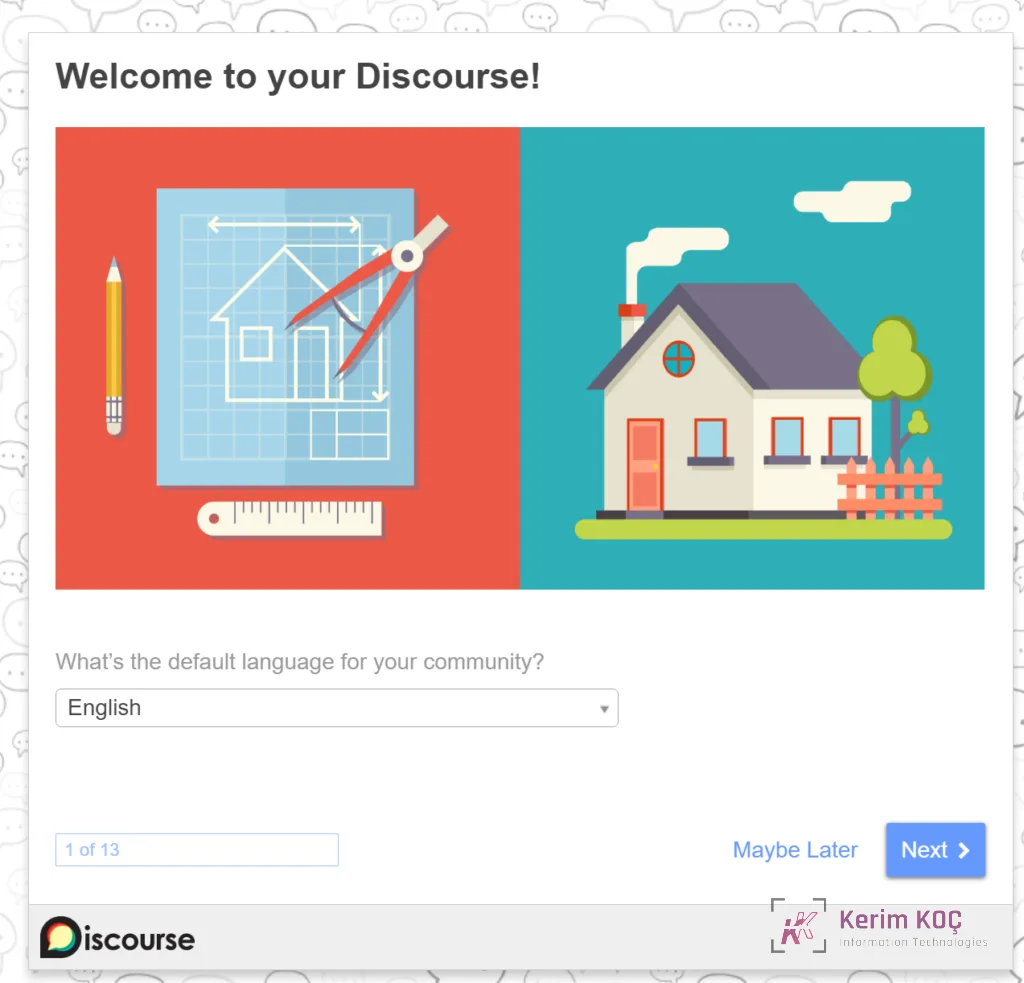
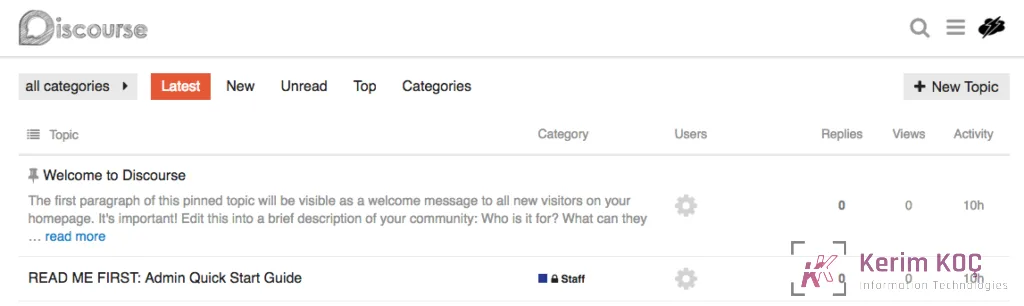
After you complete or skip the setup wizard, you will see some topics and Discourse's Admin Quick Start Guide . The quick start guide is labeled READ ME FIRST and contains tips for further customizing your Discourse installation.
Your Discourse platform is now ready to use. If you need to upgrade Discourse in the future, you can do it from the command line by pulling the latest version of the code from the Git repository and rebuilding the app:
cd /var/discourse
sudo git pull
sudo ./launcher rebuild app
You can also update Discourse in your browser. Visit , click Upgrade to Latest and follow the instructions.http://discourse.your_domain/admin/upgrade
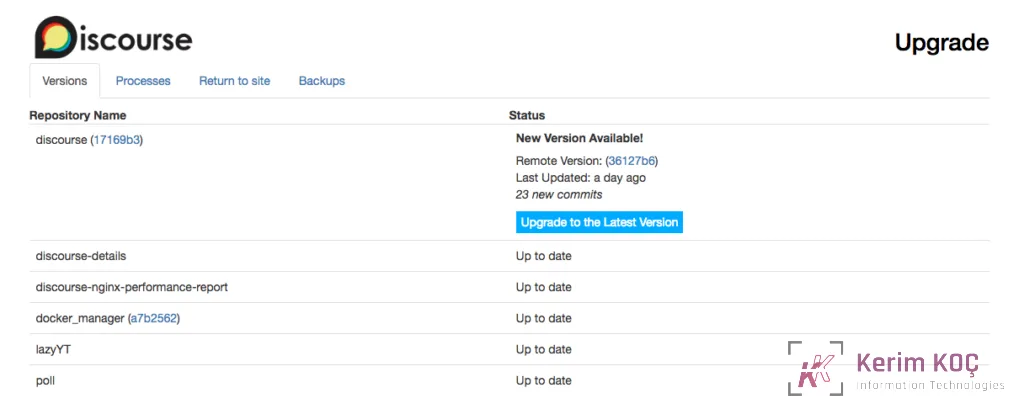
You can now start managing your Discourse forum and let users sign up. You can learn more about Discourse's features on the official About Discourse page .