Kerim Koç

Visual Studio Code is an open-source, cross-platform, feature-rich code editor developed by Microsoft.
VS Code comes with built-in support for Git control, syntax highlighting and code completion, and it combines simplicity and speed for all developers who want to build great applications on different platforms.
The easiest way to install VS Code on Ubuntu Linux is to enable the VS Code repository and install the package from there using the command line interface.
Below we show you how to do this on Ubuntu Linux.
How to Install VS Code on Ubuntu Linux
As mentioned above, Visual Studio Code is an open-source, cross-platform, feature-rich code editor developed by Microsoft.
Here is how to install VS Code on Ubuntu Linux:
First, run the following command to install some dependencies on Ubuntu Linux.
sudo apt install gnupg2 software-properties-common apt-transport-https wget
After installing the packages above, run the following command to import the VS Code repository GPG key.
wget -q https://packages.microsoft.com/keys/microsoft.asc -O- | sudo apt-key add -
Next, run the following command to add the VS Code repository on Ubuntu Linux.
sudo add-apt-repository "deb [arch=amd64] https://packages.microsoft.com/repos/vscode stable main"After the repository is added, run the following commands to install VS Code on Ubuntu Linux.
sudo apt update
sudo apt install code
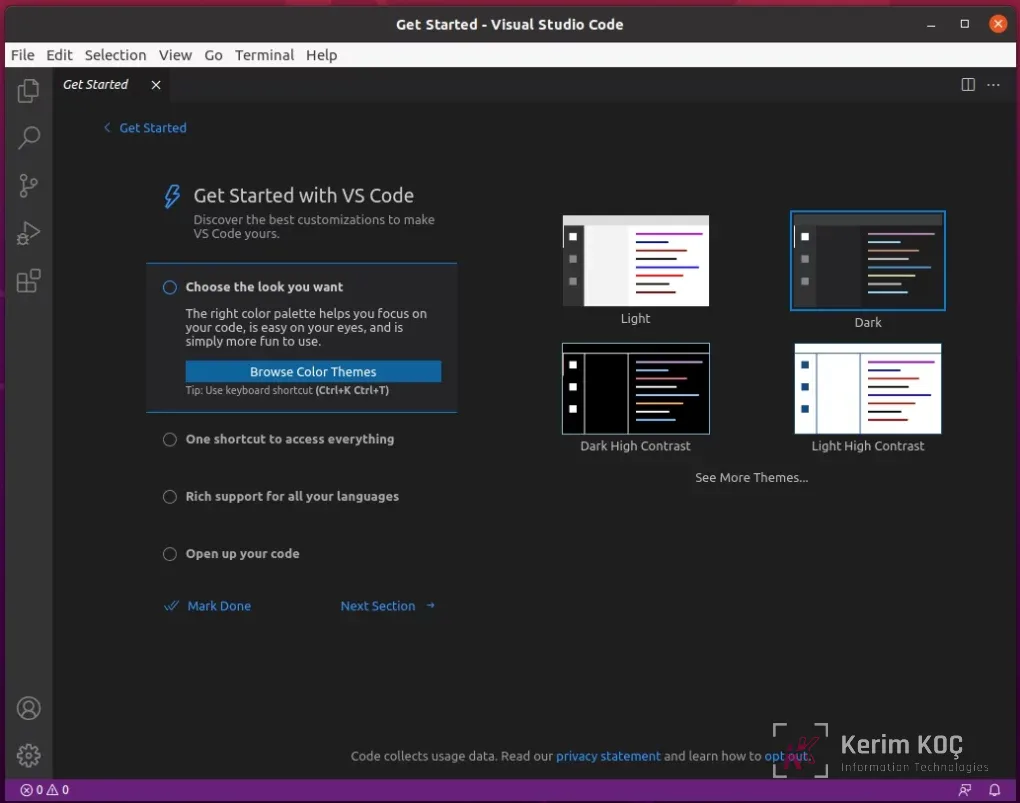
VS Code should now be installed on Ubuntu Linux. Go to your desktop applications and search for it.