 Kerim Koç

Now that you have learned how to create a website domain, set up a Google Cloud server, and install Apache, Nginx, PHP and MySQL or MariaDB, you can continue below to put it all together with Joomla.
When we started this series, we said that a web server allows content to be published and served to web clients and to the visitors browsing your website. A PHP or other server-side scripting language makes the website dynamic and more functional. A database server lets you store your website's content efficiently.
Other software and packages may also be needed to improve a website's functionality. Below, we will show you how to install these tools with Joomla.
In our first post we also mentioned that once you create a domain name, it cannot be used until it is directed or pointed to a server. In the second post, we showed how to point a domain name to a server we created. Then we showed how to install the software and packages that will help us run an online website.
At this point, we are ready to connect to our Google Cloud server and install Joomla by tying together the software and packages installed in our previous posts.
How to Connect to Google Cloud Servers
The Google Cloud server (Compute Engine) allows users to connect to virtual machine (VM) instances from the Google Cloud Console using SSH in a browser window .
SSH from the browser supports the following:
- Web browsers
- The latest version of Google Chrome
- Firefox
- Microsoft Edge
- Microsoft Internet Explorer 11 and above
- Safari 8 and above. Note that Safari's private browsing mode is not supported.
- Virtual machine configurations
- All Linux VM images available natively in Google Cloud.
No additional software or browser extension is required. Log in to the Google Cloud Console and go to Menu ==> Compute Engine ==> VM instances .
In the list of virtual machine instances, click SSH in the row of the instance you want to connect to .

Alternatively, you can open an SSH connection to an instance by clicking the instance name and then clicking SSH on the instance details page .
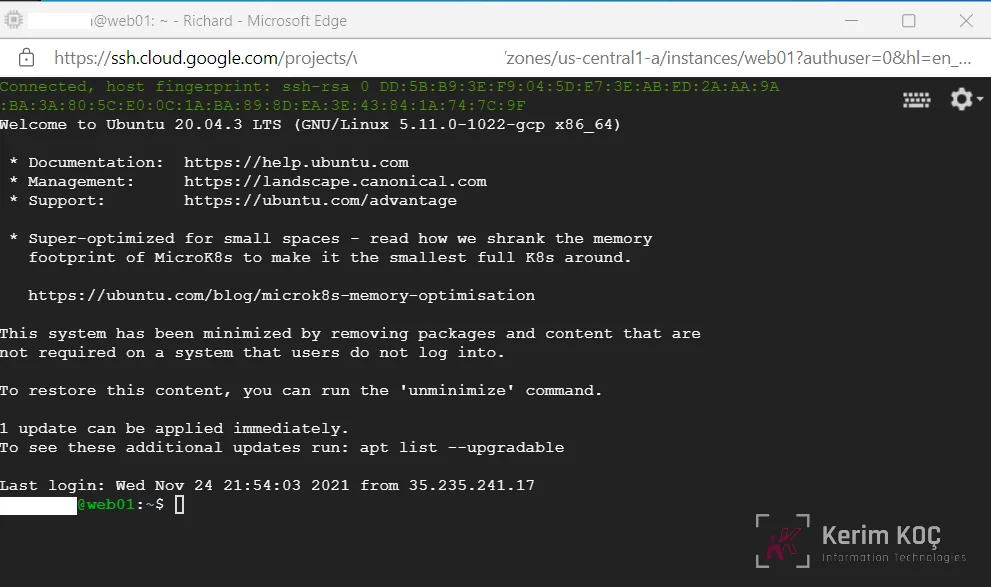
An SSH terminal window will open with the Ubuntu Linux instance created in the second post of the series.
You should now be able to run commands on the Ubuntu Linux instance created on the Google Cloud server.
How to Install Joomla on Google Cloud Servers
Installing and managing a Joomla website on Ubuntu Linux is no different on Google Cloud servers than on a local virtual machine instance.
After installing all the required packages, Joomla can be installed directly from your browser by browsing to the server's hostname or IP address.