Kerim Koç

Nano is a popular, feature-rich command-line text editor for Unix / Linux based systems. After Vim / vi, a large number of users have chosen nano as their command-line editor. This article explains how to search in nano on the command-line interface.
How to Search in Nano
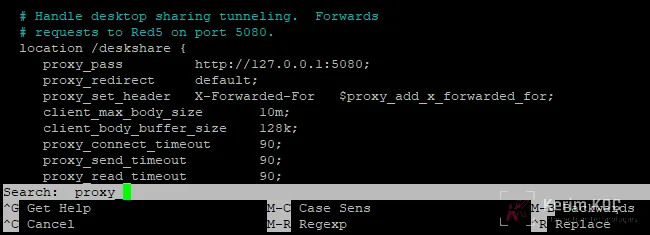
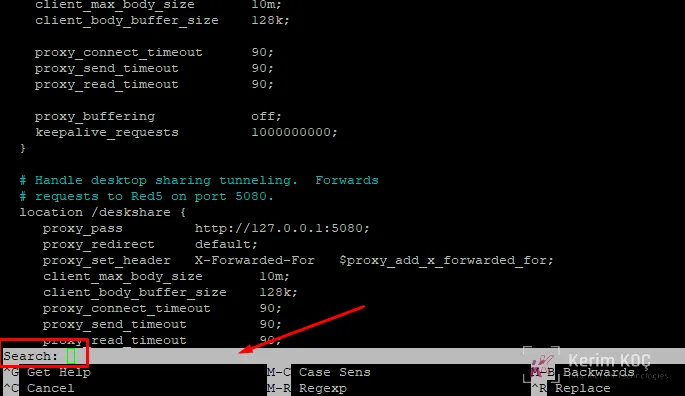
To search for text in nano, press Ctrl-W (for "Where is..."). You will be asked what to search for. Enter the text and press Enter or Return. If a match is found, the cursor will jump to the first occurrence of the match. If no match is found, a message such as "[" search string "not found]" is displayed.
Here are the simple steps to perform a search in the nano editor:
- Open the file for editing in nano
- Press
CTRL+Wor theF6key - Type the search pattern
- Press Enter to perform the search
- Use
CTRL+Wagain and just press Enter to search for the next occurrences
Case-Sensitive Search in Nano
By default, nano search is case-insensitive. This means the search algorithm matches letters in either case. You can also search in a case-sensitive way.
To perform a case-sensitive search in nano, follow these steps:
- Open the file for editing in nano
- Press
CTRL+Wor theF6key - Press
ALT+Cto enable case-sensitive search - Type the search string