Kerim Koç

Contents
- Make sure you have the right version of the Tableau Server software
- Get a product key and make sure you are registered
- Make sure you have the right Linux distribution
- Make sure you have root permissions
- Make sure you install on a “clean” computer
- Step 1: Install the Tableau Server package and start Tableau Services Manager
- Make sure the identity store type is correct
- Option 2: Active Directory
- Option 3: OpenLDAP or another LDAP directory
- Gateway port
- Sample workbook installation
- Step 4: Create the Tableau Server administrator account
- Step 5: Configure the local firewall (optional)
- Step 6: Validate your installation
- Your server is installed!
Make sure you have the right version of the Tableau Server software
Our recommendation is this: use the same version of Tableau Desktop and Tableau Server (for example, 2021.1 ) across your organization. To get the latest version of the Tableau Server software, go to the Customer Portal (Link opens in a new window). When you purchase Tableau, you receive a username and password to sign in to the Customer Portal.
If you are in a situation where you need to run different versions of Tableau on different computers, read the Desktop and Server Compatibility article. (Link opens in a new window).
Get a product key and make sure you are registered
Go to the Customer Portal using the username and password you received when you purchased Tableau.(Link opens in a new window) and get your product key.
Also make sure you have registered an email address. We need a contact email to associate with each product key. You should give us an email address that is checked frequently and will not expire.
Make sure you have the right Linux distribution
The following Linux distributions are supported:
- Amazon Linux 2
- Red Hat Enterprise Linux (RHEL) 7.3 and later (not 8.x) and Amazon Linux 2
- CentOS 7.3 and later (not 8.x)
- Oracle Linux 7.3 and later (not 8.x)
- The latest versions of Ubuntu 16.04 LTS and 18.04 LTS (not 17.04)
- Debian 9
Additional notes about Linux distributions:
- Red Hat Enterprise Linux (RHEL), CentOS, Oracle Linux and Amazon Linux distributions are collectively referred to as RHEL-like in this document.
- RHEL 8 is not supported.
- Non-LTS versions of Ubuntu are not supported.
- Ubuntu 17.04 is not supported.
- Earlier versions of CentOS and Ubuntu are not supported because Tableau Server requires
systemdprocess management . - The version of the installer with the file suffix
deb, is installed on both Ubuntu and Debian distributions. - Custom kernels are not supported.
Make sure you have root permissions
All installation tasks and administration tasks for Tableau Server must be run as root. Typically this is done using the sudo command, but it is also possible to run commands directly as the root user.
To install Tableau Server with the root account, you must specify a user account during installation. The account you specify will be used to administer TSM. Specify the account by running the initialize-tsm script with the -a option. See Help Output for the initialize-tsm Script (Link opens in a new window).
Make sure you install on a “clean” computer
As we discussed in the planning section, we recommend that you install Tableau Server on a computer dedicated to running Tableau Server. Here is why:
- Performance. As Tableau Desktop users discover the data freedom that Tableau Server provides, they will use Tableau Server to share data sources and to view, share and host workbooks as part of their daily decision-making. This data transformation requires a fast and stable server computer. Tuning performance is much simpler when Tableau Server is not competing with other resources, especially other database applications.
- Security. A general security best practice is to isolate server applications as much as possible. Tableau Server acts as a conduit between your users and the data that may be spread across your network. Tableau Server also stores extracts of your important data. All Tableau software is built with disciplined security engineering practices, and with our default installation we work hard to protect data, accounts and sensitive information. But to reduce the risk of security incidents, you should reduce the attack surface of the computer running Tableau Server by removing (or not installing) other server software.
- Interoperability. A highly experienced administrator can get Tableau software to work happily with many other server software packages that could be installed on the same computer. However, we assume that you want to minimize the time you spend configuring the server manually. For example, if the server computer on which you install Tableau Server runs a service that communicates over HTTP, then it will be configured to use port 80 and/or 443, which means that port will not be available for Tableau Server. Of course, you can configure Tableau Server to use a different port, such as 8000. But this means that every time your users connect to Tableau Server, they will have to enter that port number in the URL ( ) . You can see how this would guarantee you a constant stream of emails asking how to connect to Tableau Server. Not pretty, and not conducive to a data revolution. So the best practice is to make sure Tableau Server's server computer belongs entirely to itself.
http://your-server:8000/
File paths
In the procedure below we reference some file paths. When we know where a file lives, we refer to it as an absolute path. For example:
cd /opt/tableau/tableau_server/packages/scripts.<version>
However, you may need to create files and save them somewhere. Obviously, we have no way of knowing where you put them. In those cases, we reference the paths like this:
tsm register --file /path/to/registration_file.json
Ready? Let's put those pieces aside …
Step 1: Install the Tableau Server package and start Tableau Services Manager
Install Tableau Server with your distribution's package manager, then run a script to start Tableau Services Manager (TSM). Tableau Services Manager is an administrative toolset used to install, configure and manage Tableau services.
The initialization script is included in the installed package.
- Sign in as a user with sudo access to the computer where you want to install Tableau Server.
- Go to the directory where you copied the Tableau Server installation package.
- Use the package manager to install the Tableau Server package. Do not install to a location that uses a symbolic link or to a directory on a Network File System (NFS) volume.
- We will start the installation with sudo privileges.
sudo apt-get update
sudo apt-get upgrade -y
Then we download the package to our server with wget.
sudo wget https://downloads.tableau.com/esdalt/2021.1.1/tableau-server-2021-1-1_amd64.debAfter downloading the package, we update the server again.
sudo apt-get update
sudo apt-get upgrade -y
From the command line, we go to the following directory.
/opt/tableau/tableau_server/packages/scripts.20211.21.0420.1112After entering the directory, we accept the agreement.
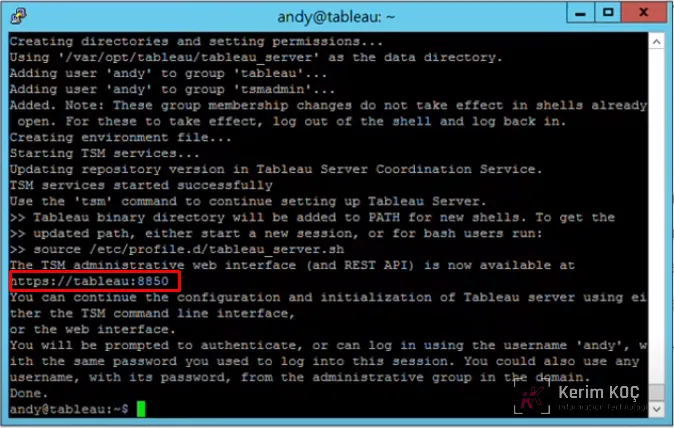
./initialize-tsm --accepteula
After you accept the agreement, it will produce output like the following. We sign in using the IP we assigned to our server.
https://192.168.100.46:8850
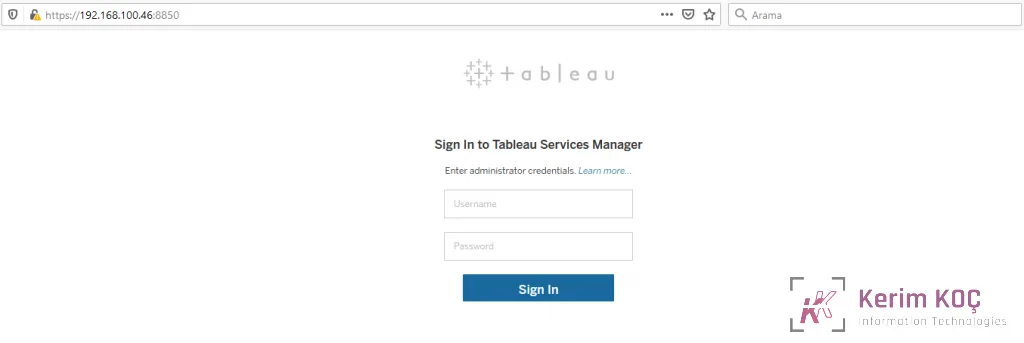
We sign in with the username and password of our server.
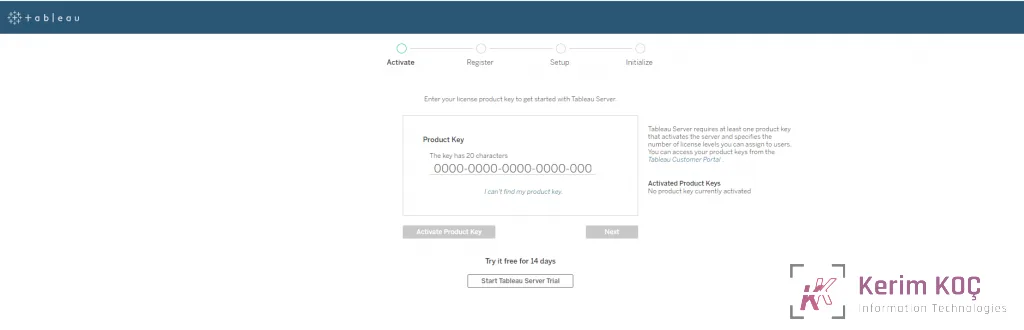
If you have a license, enter your 20-character license key in the field below; otherwise continue with the Trial version.
Then, after filling in the required information on the Register page, we click Register .
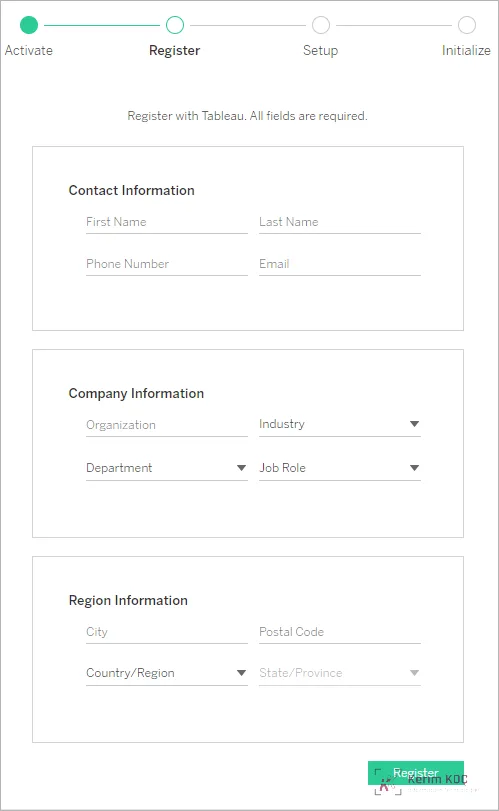
The most important configuration on this setup page is the identity store option
Make sure the identity store type is correct
Make sure you configure Tableau Server for the correct identity store solution. If you want to change it after installing, you will have to reinstall Tableau Server. Choose one of the following options for the identity store you are configuring.
Option 1: Local identity store
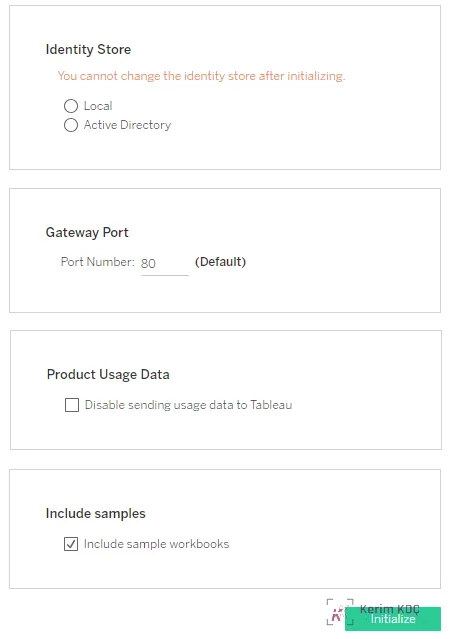
Configuring the identity store for local is simple: just select it and finish.
Option 2: Active Directory
Tableau Server requires read access to Active Directory. You can use simple bind or GSSAPI bind to authenticate Tableau Server with Active Directory.
LDAP simple bind
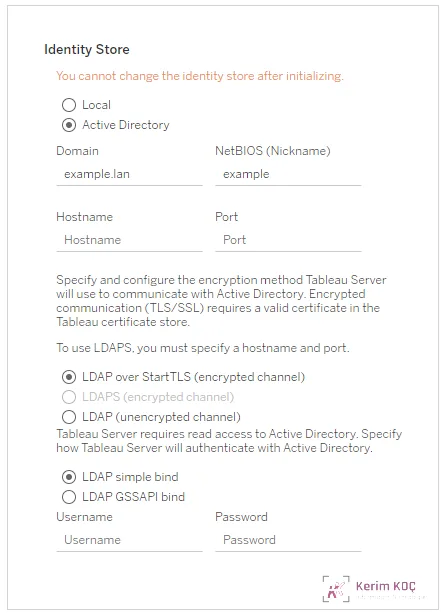
If you use simple bind to authenticate with Active Directory, enter a domain account and password. We recommend that you use LDAPS to connect. See LDAP over SSL (Link opens in a new window) in the server online help.
LDAP GSSAPI bind
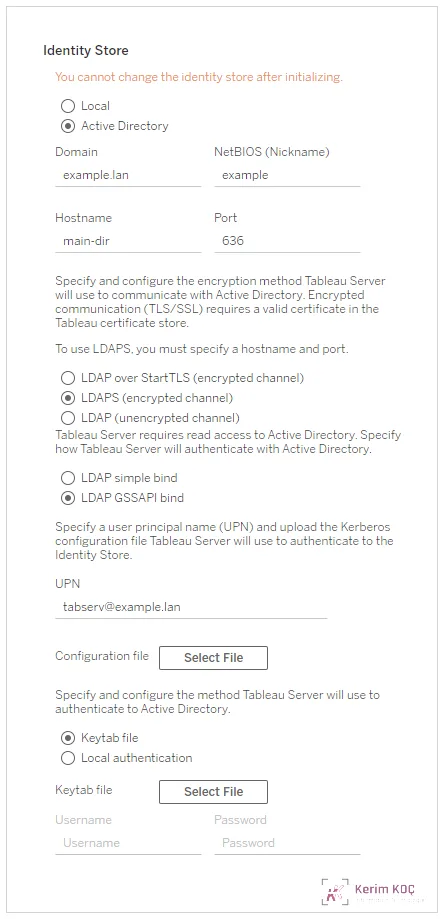
We recommend that you connect to the LDAP directory with GSSAPI. To connect with GSSAPI, you will need a keytab file specifically for the Tableau Server service. See Understanding Keytab Requirements (Link opens in a new window).
Option 3: OpenLDAP or another LDAP directory
For example, save the file locally as ldap_config_file.json. During the installation process, instead of configuring the local identity store, pass the ldap_config_file.jsonconfiguration file.
Gateway port
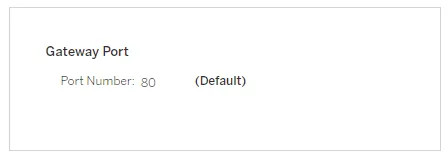
The default port for web access (via HTTP) to Tableau Server is port 80. If the setup program determines that port 80 is in use when you first install Tableau Server, an alternative port (such as 8000) is used and shown in the Port number box.
You may need to change the port for other network requirements, for example if you have a hardware firewall or proxy in front of the Tableau Server host, which could make running a back-end system on port 80 undesirable.
Sample workbook installation
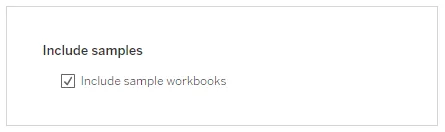
By default, Tableau Server will install Sample workbooks to the Default site when you start the server.
After you configure the options on this page, click Start .
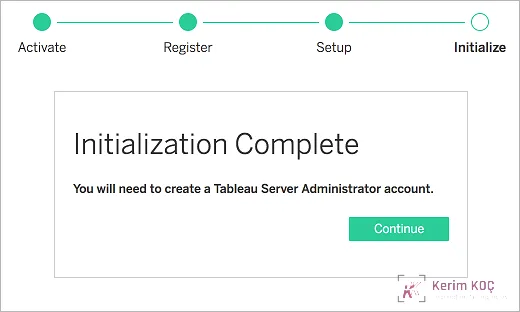
The initialization process may take some time. When initialization is complete, the following page is displayed:
Step 4: Create the Tableau Server administrator account
Create the Tableau Server administrator account.
- If you are using LDAP for authentication, the account you specify here must be a user in the directory.Run the following command:
tabcmd initialuser --server 'localhost:80' --username '<AD-user-name>' - On the other hand, if you are running Tableau Server with local authentication, the username and password you specify here will be used to create the administrator account. Enter a strong password for this account.Run the following command:
tabcmd initialuser --server 'localhost:80' --username 'admin'
Step 5: Configure the local firewall (optional)
We recommend that you run a local firewall on the computer running Tableau Server. This is a security best practice. By default, Linux distributions do not enable the firewall during standard installations.
If you have installed or enabled a local firewall, you need to open two ports for Tableau Server. These ports are the gateway port (TCP 80) and the tabadmincontroller port (TCP 8850). The procedure below shows an example of how to open these ports using Firewalld , the default firewall on CentOS. If you use a different firewall, you need to determine the correct commands to open these ports.
- Start the firewall:
sudo systemctl start firewalld - Set the default zone to public. Run the following command:
sudo firewall-cmd --set-default-zone=public - Add ports for the gateway port and the tabadmincontroller port. Run the following commands:
sudo firewall-cmd --permanent --add-port=80/tcpsudo firewall-cmd --permanent --add-port=8850/tcp - Reload the firewall and verify the settings. Run the following commands:
sudo firewall-cmd --reloadsudo firewall-cmd --list-all
Step 6: Validate your installation
To verify that Tableau Server is installed and running properly, and to review the built-in administrative views, you need to install the PostgreSQL driver.
- Download the PostgreSQL drivers from the Driver Download page (Link opens in a new window).
- Copy the .jar file to this folder (you may need to create it manually):
/opt/tableau/tableau_driver/jdbc. - Restart TSM:
tsm restart - To verify that the drivers are installed, go to the Administrative Views in Tableau Server .
Your server is installed!
After you create the administrator user, you sign in to Tableau Server as an administrator using the web interface. You can look around the user interface to understand what you can do. You can also try publishing a workbook (Link opens in a new window) from Tableau Desktop to the server.
But before you make Tableau Server available to all of your colleagues, you should take a few more steps. First: back up your server. Even if you do not have any users or data on your Tableau Server, you should do a quick backup.