Kerim Koç

aaPanel is a free, simple and lightweight server control software that you can use to manage your servers, domains, SSL, MySQL databases and other web hosting features from a simple web interface in a web hosting environment.
aaPanel also runs out of the box on low-resource servers... With the automatic installer, you can install multiple applications with a single click.
If you need a next-generation hosting control platform built for speed, security and stability, you may want to try the aaPanel host control platform.
Some of the features that come with aaPanel include: WEB domains, DNS domains, MAIL domains, Databases, CRON, User Directories and more.
For more information about aaPanel, please visit its home page
When you are ready to install aaPanel, continue with the steps below:
Step 0: Configure the Local Host
Before installing aaPanel, you will want to set up the local domain of Ubuntu on the server... To do this, run the command below to open the Ubuntu local hosts file...
sudo nano /etc/hostsThen, write the server address in the domain mapping. You can use your public IP address instead of your local IP address...
127.0.0.1 aapanel.example.com
It should look similar to the lines below:
127.0.0.1              localhost
127.0.1.1              ubuntu1804
127.0.0.1              aapanel.example.com

# The following lines are desirable for IPv6 capable hosts
::1     ip6-localhost ip6-loopback
fe00::0 ip6-localnet
ff00::0 ip6-mcastprefix
ff02::1 ip6-allnodes
ff02::2 ip6-allrouters
Save the file and exit
Follow the steps below to start installing aaPanel on Ubuntu:
Install aaPanel
To quickly install aaPanel on Ubuntu, run the commands below to add its repository to Ubuntu.
wget -O install.sh http://www.aapanel.com/script/install-ubuntu_6.0_en.sh && sudo bash install.shAfter running the commands above, aaPanel should run, download and install all packages. When it is done, you should see a success message similar to the following:
==================================================================
 Congratulations! Installed successfully!
 aaPanel Internal Address: http://10.0.2.10:8888/8c507cff
 username: 6yxnpg4v
 password: bccf9493
 Warning:
 If you cannot access the panel,
 release the following port (8888|888|80|443|20|21) in the security group
 Time consumed: 4 Minute!
Access aaPanel
When you have completed the steps above, open your web browser and go to the aaPanel WebUI at 127.0.0.1 on port 8888.
http://localhost:8888/8c507cffReplace the example IP address with your server's address.
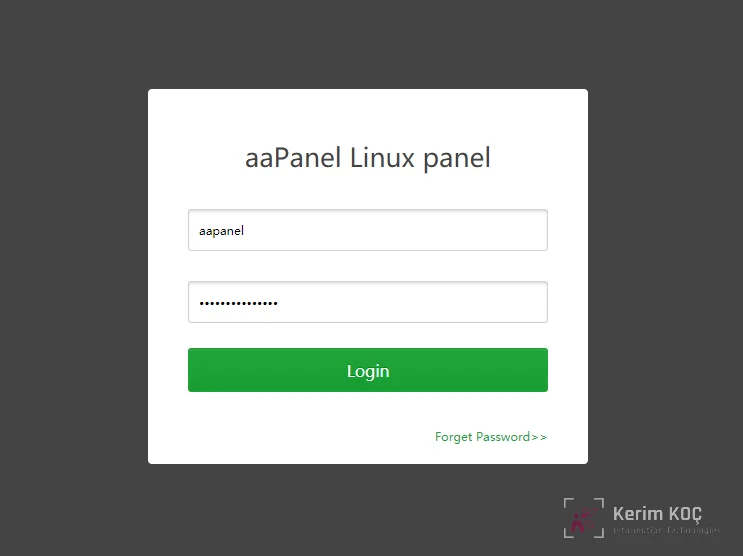
Log in with the administrator account created above. After you log in, you will be asked to choose the environment you will work with in aaPanel.
Nginx with MySQL and PHP (LNMP), or Apache with MySQL and PHP (LAMP).
For this tutorial, we went with LNMP.
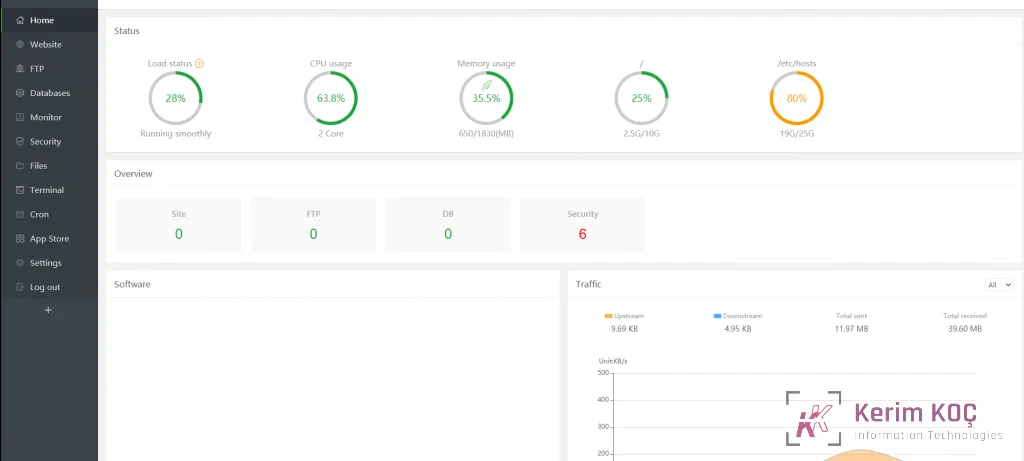
The LNMP packages will now be downloaded and installed. This may take some time depending on the speed of your server.
When everything is done, start setting up your environment.