Kerim Koç
For a replicated virtual machine, Hyper-V offers us 6 options related to replication.
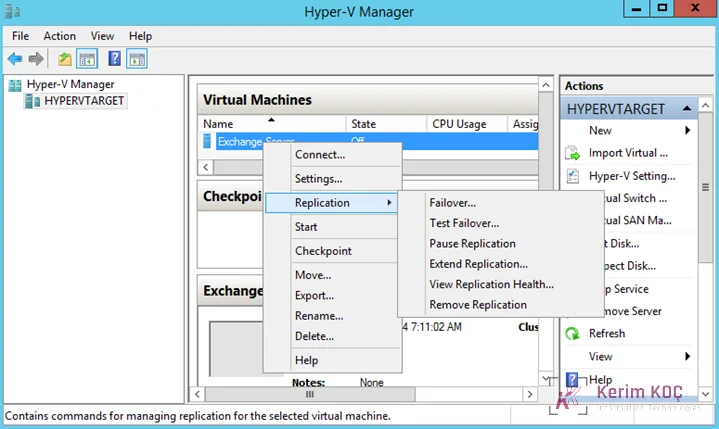
Figure-1
- Failover
- Test Failover
- Pause Replication
- Extend Replication
- View Replication Health
- Remove Replication
Failover
If your source virtual machine goes down, selecting failover lets your system continue running on the target Hyper-V host you specified. After you select Failover, if more than one recovery point was defined, you will be asked to choose one. After you select the time frame you are interested in, your virtual machine will continue running on the target Hyper-V host with the Failover TCP/IP (network settings) you specified.
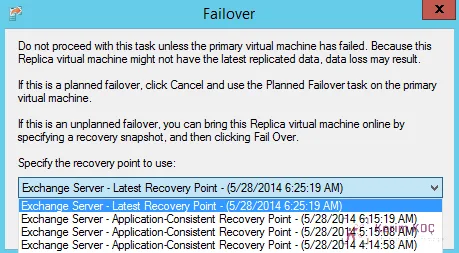
Figure-2
Test Failover
A test failover is performed to verify that your source virtual machine is healthy and that replication is taking place. It lets you see whether the system was healthy at the point in time of the recovery point you specify.
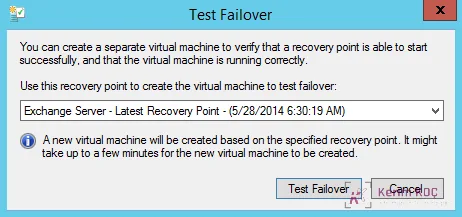
Figure-3
Pause Replication
When you have another operation to perform on the Hyper-V host, you can pause the task. When you are done, you can continue replication by selecting Resume Replication.
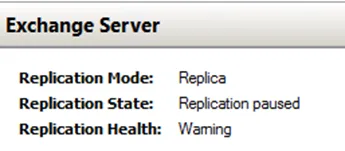
Figure-4
Extend Failover
You can also replicate the already replicated machine to a different point. We covered how replication works in the previous sections.
View Replication Health
You can see the replication status in the window that opens. This information includes the current host, the suffixes of the replicated host, the replication status, when replication started and when it finished, data sizes, and the amount of data waiting to be replicated.
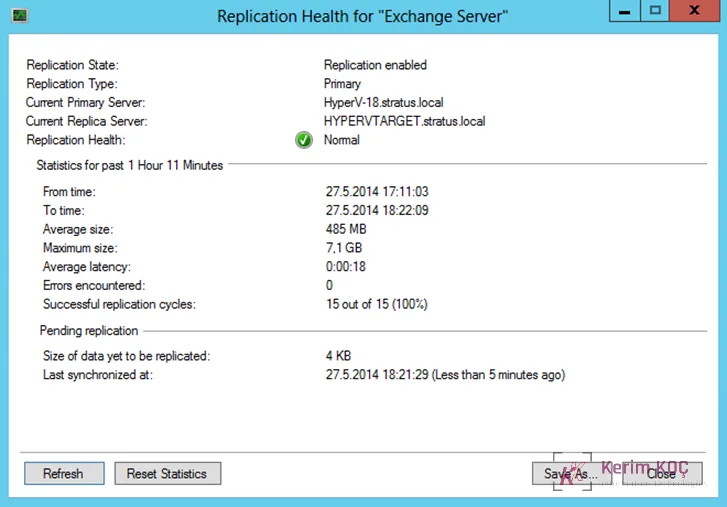
Figure-5
Remove Replication
You can delete the replication you created.