Kerim Koç
Contents
SSL VPN Using Web and Tunnel Mode
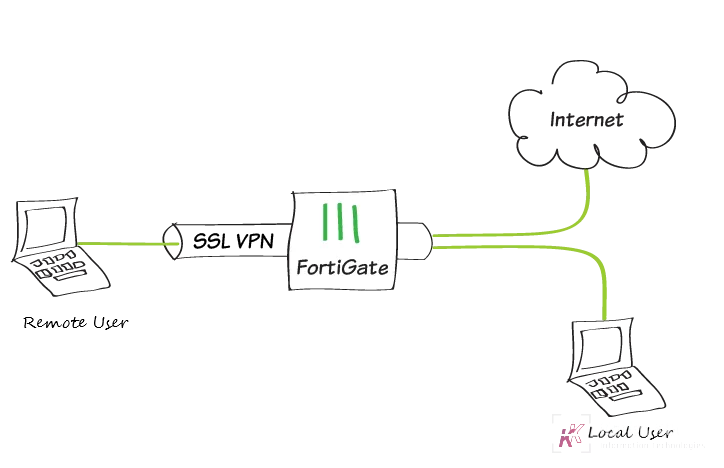
In this example, you will allow remote users to access the corporate network using an SSL VPN, either by connecting in web mode with a web browser or by creating a tunnel with FortiClient . Web mode allows users to access network resources such as the AdminPC used in this example.
Configuring SSL VPN on Fortigate 6
For users connecting through tunnel mode, Internet traffic will also flow through the FortiGate so that security scanning can be applied to it.
During the connection phase, the FortiGate will also check that the remote user's antivirus software is installed and up to date. This recipe is part of the FortiGate Basic network collection. You can also use it as a standalone recipe.
How to Create the VPN
Editing the SSL VPN portal
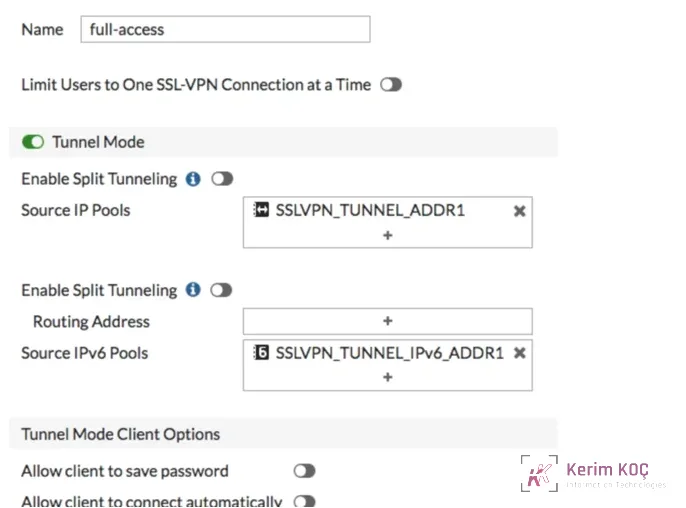
- To edit the full-access SSL VPN portal, go to VPN > SSL-VPN Portals. The full-access portal allows the use of both tunnel mode and web mode.
- In Tunnel Mode, disable the Enable Split Tunneling option for IPv4 and IPv6 traffic so that all Internet traffic passes through the FortiGate.
- Define the source IP pools to use the default IP range SSLVPN_TUNNEL_ADDR1
Configuring SSL VPN on Fortigate 7
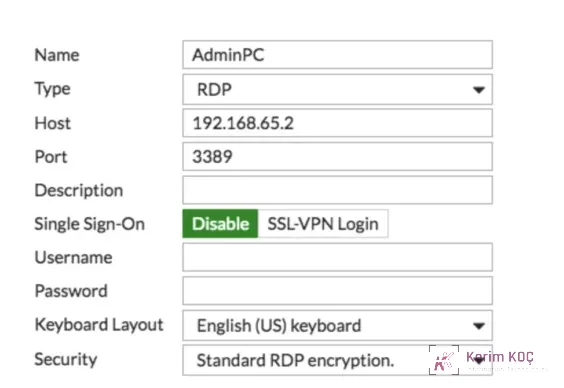
In Enable Web mode, create predefined bookmarks for all internal resources that VPN users need to access. In the example, the bookmark allows the remote user RDP access to a computer on the internal network.
Configuring SSL VPN on Fortigate 8
Configuring the SSL VPN Tunnel
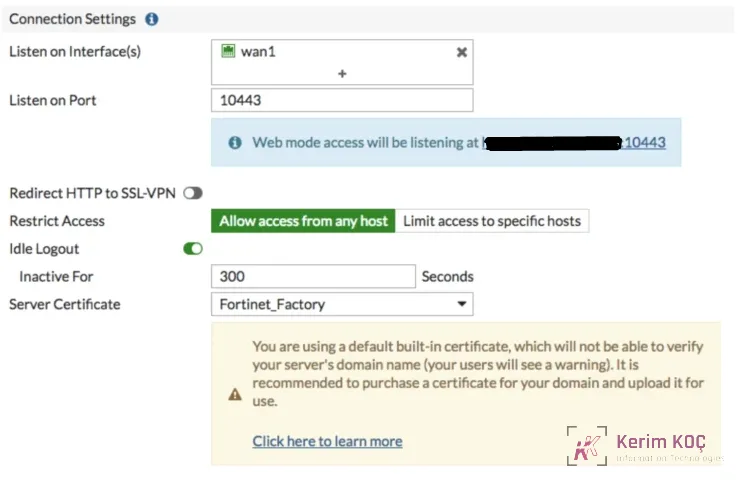
- To configure the SSL VPN tunnel, go to VPN > SSL-VPN Settings.
- Set Listen on Interface(s) to wan1. Set Listen on Port to 10443 to avoid port conflicts.
- Select Restrict Access to allow access from any host.
Optionally, set Restrict Access to Limit access to specific hosts and specify the addresses of the hosts that are allowed to connect to this VPN. - In the example, the Fortinet_Factory certificate is used as the server certificate. To make sure traffic is secure, you should use your own CA-signed certificate. For more information about using certificates, see Avoiding certificate warnings (CA-signed certificates).
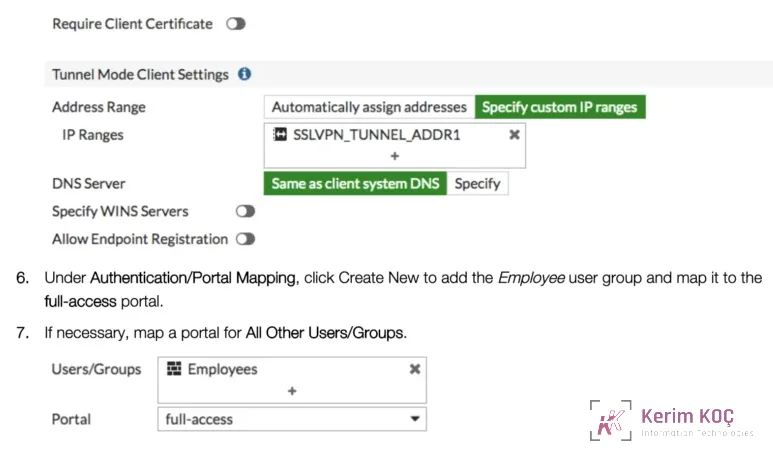
- Under Tunnel Mode Client Settings, set IP Ranges to use the default IP range SSLVPN_TUNNEL-ADDR1.
Configuring SSL VPN on Fortigate 9