Kerim Koç
When you deploy a backup solution such as Veeam Backup & Replication 9.5, this tool becomes your safety net. In the event of a general failure, the backup tool must be running in order to restore your servers and data. In some cases Veeam Backup & Replication 9.5 itself can fail in production, and in fact Veeam is the first machine to be restored. Veeam Backup & Replication provides a mechanism to back up and restore its configuration. The configuration backup works like any other backup: with restore points. You only need to schedule the configuration backup and make a copy of that backup outside the data center.
This backup and restore mechanism can also be used for migration. If you have an old Veeam server and want to move to a newer one without redoing the entire configuration, you can back up and restore the configuration for the migration.
Schedule a backup of the Veeam Backup & Replication configuration
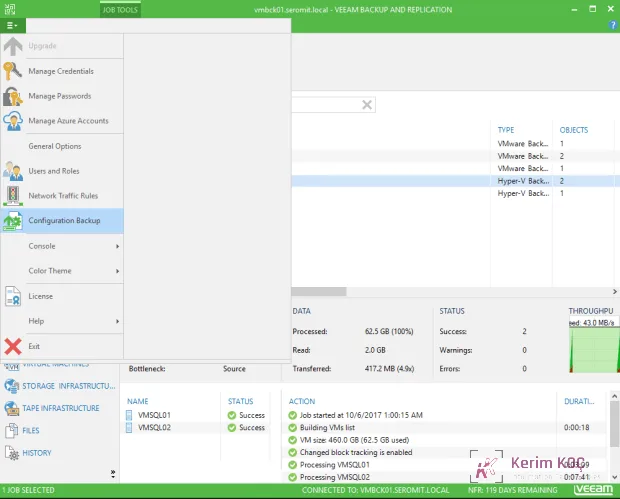
To manage the configuration backup, open a Veeam Backup & Replication console, click the "hamburger" menu (top left) and select Configuration Backup .
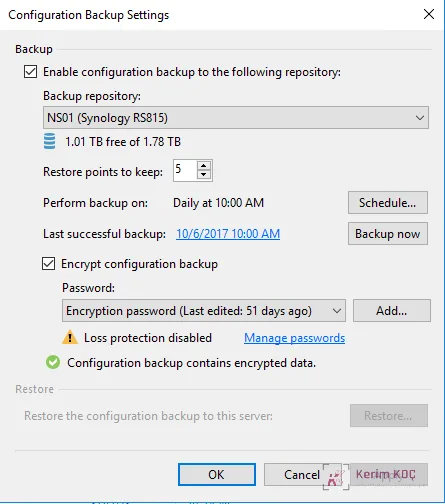
You can then enable the configuration backup on a backup repository. Scale-Out Repository is not supported for configuration backups. You can choose the number of restore points to keep and schedule the backup. To store the credentials you use in Veeam, you need to enable the Encrypt configuration backup option .
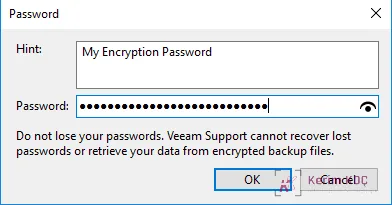
Set a password that you will never lose and click OK.
Restore the Veeam Backup and Replication configuration
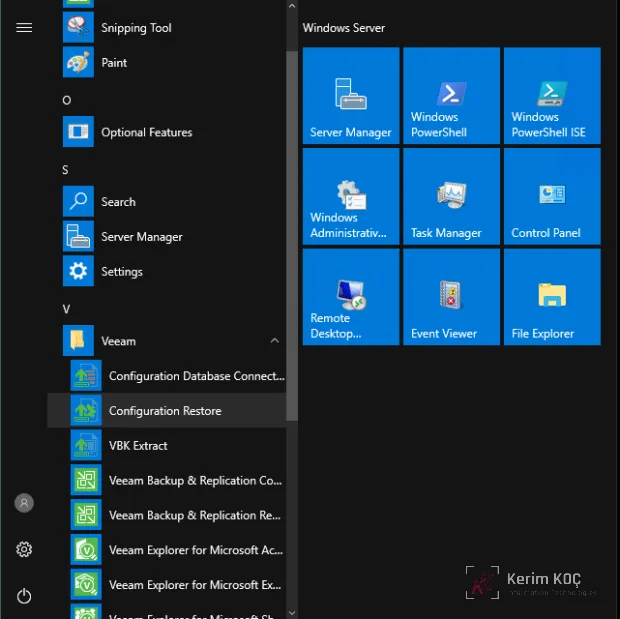
To restore the Veeam Backup & Replication configuration, log in to the Veeam server and open Configuration Restore as follows :
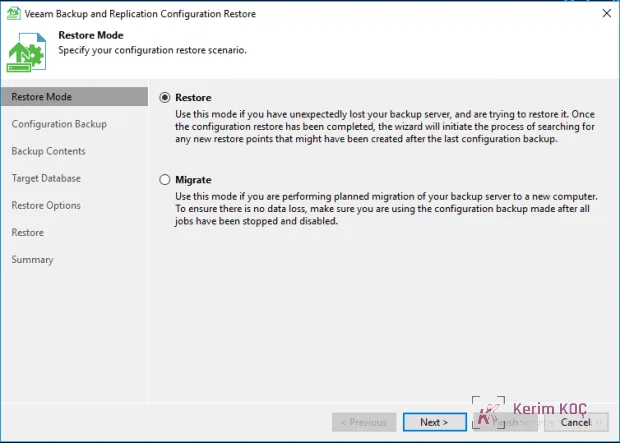
The wizard asks whether you want to restore or whether you are performing a migration. For this example I select Restore .
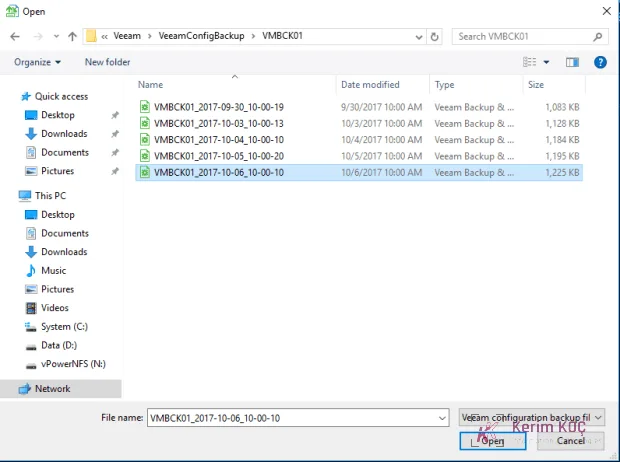
Open the backup repository and select the restore point you want.
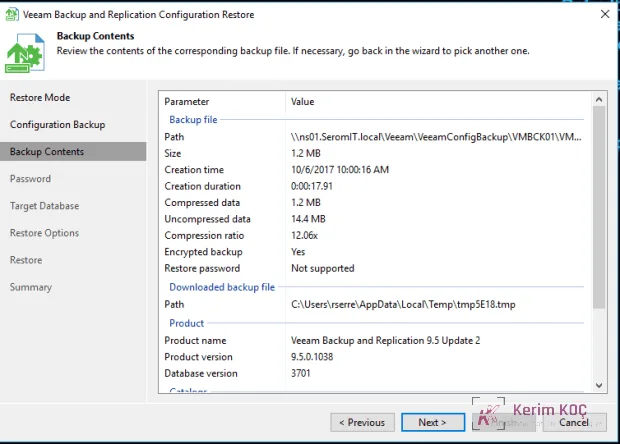
On the next screen, you get a summary of the backup contents. If you agree, click Next .
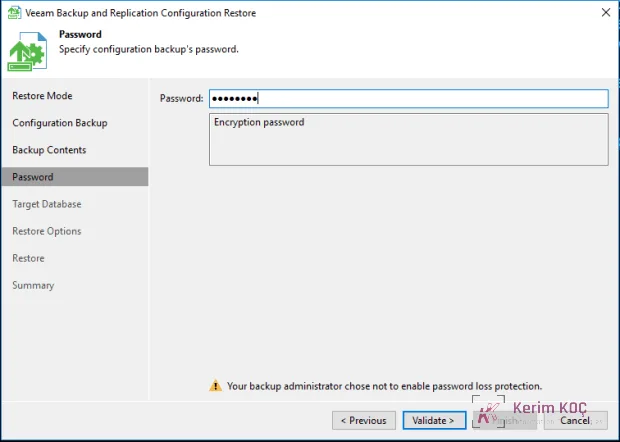
If you encrypted your backup, specify the encryption password.
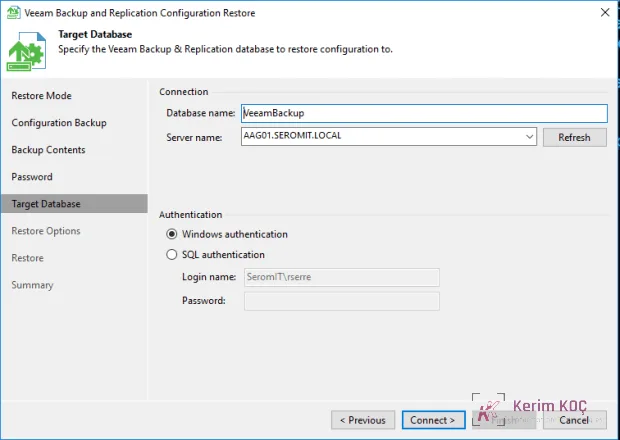
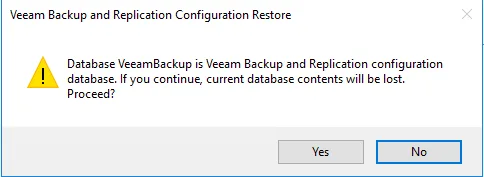
Then specify the target database. If the database already exists, it will be deleted and recreated.
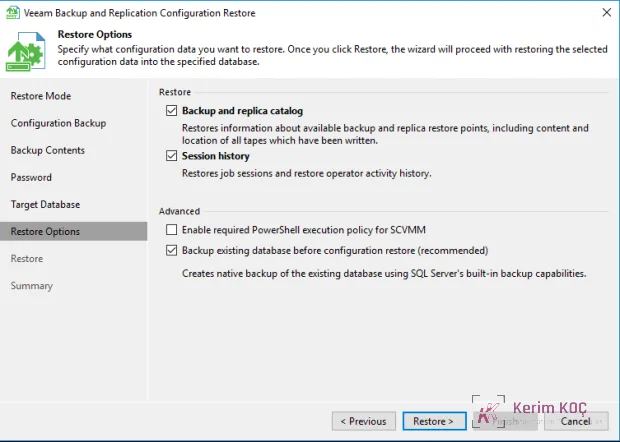
Select the configuration data you want to restore.
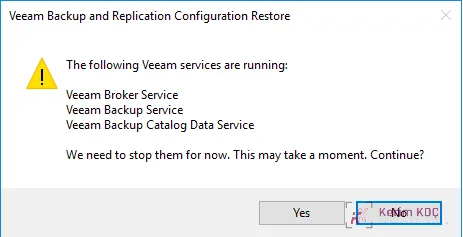
If the Veeam services are running, the wizard will stop them for you.
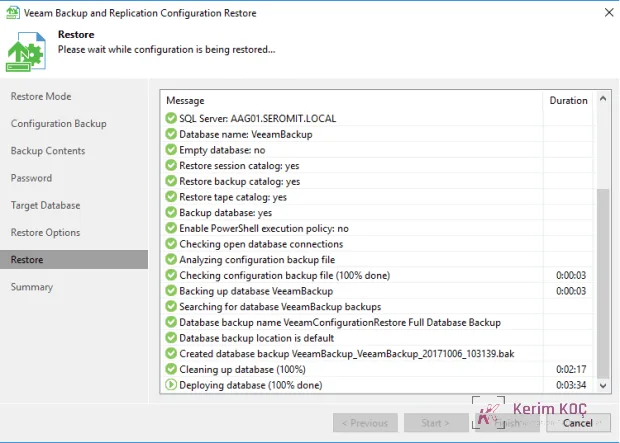
When the restore is running, you should see something like the following:
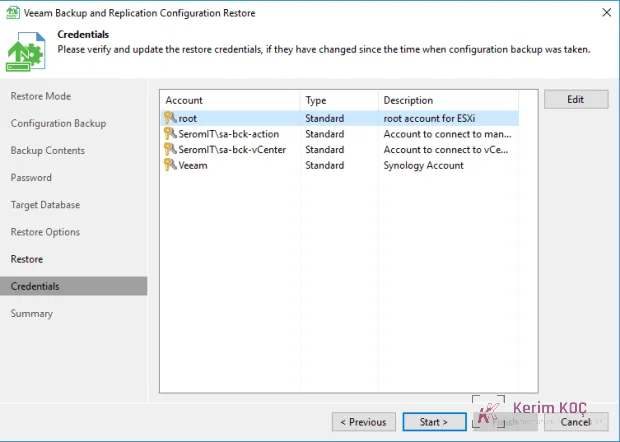
After the restore, the wizard asks you to verify the credentials.
When the restore finishes, you will see the following screen.
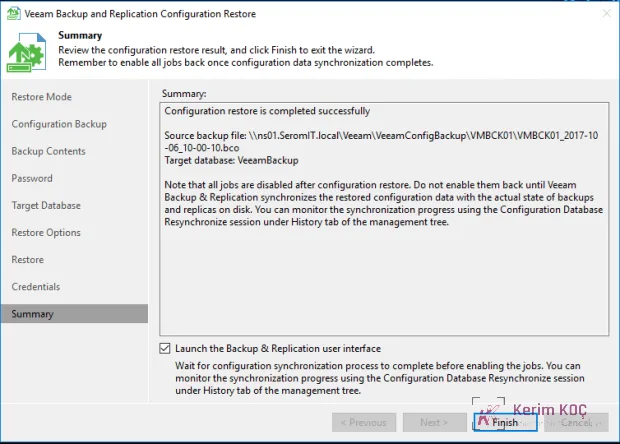
The last step concerns the backup jobs: after a restore, they are all disabled. You need to enable them, and you're done