Kerim Koç

This short tutorial shows students and new users tips to help improve Windows 10 performance.
Below are some suggestions to help speed up Windows 10 if you notice your computer running slowly.
There are many reasons why Windows PCs run slowly. They range from low disk space and page file size to Windows updates that can cause Windows to behave this way.
The following post will help your computer perform the way it should.
If you are a student looking for a computer to start learning on, or a new user, the easiest place to start is Windows 10. Windows 10 is the latest version of the personal computer operating system developed and published by Microsoft as part of the Windows NT family.
Years after its release, Windows 10 has become one of the best operating systems and is used by millions of users worldwide.
One of the best ways to get the most out of your computer is to make sure the latest version of Windows 10 is installed.
When you run Windows Update, your computer will also look for the latest device drivers, patches and features that can help speed up slow computers.
Update Windows
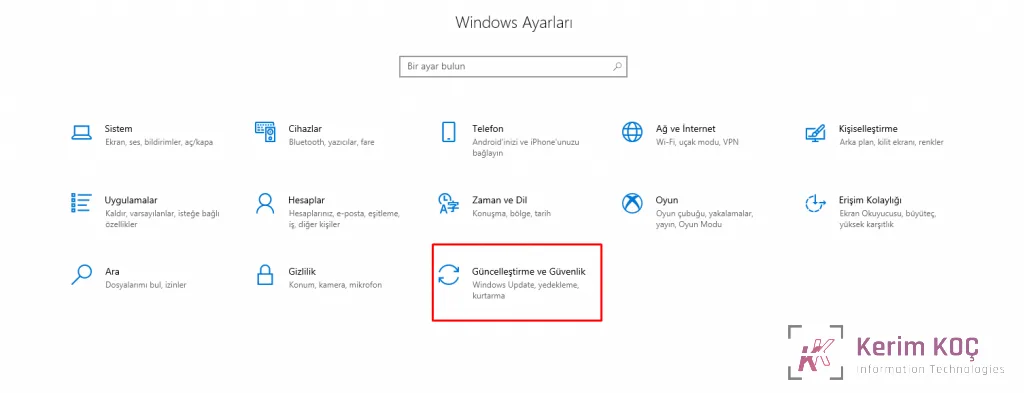
- Select the Start button, then select Settings > Update & Security > Windows Update > Check for updates .
- Do one of the following:
- If the status says "You're up to date," continue below.
- If the status says "Updates available," select Install now .
- Select the updates you want to install, then select Install .
- Restart your computer and see if it runs better.
Adjust the Appearance of Windows
Windows 10 includes many visual effects, such as animations and shadow effects. These settings make Windows look great, but they need additional resources that can slow down your computer, especially older machines.
To adjust visual effects in Windows
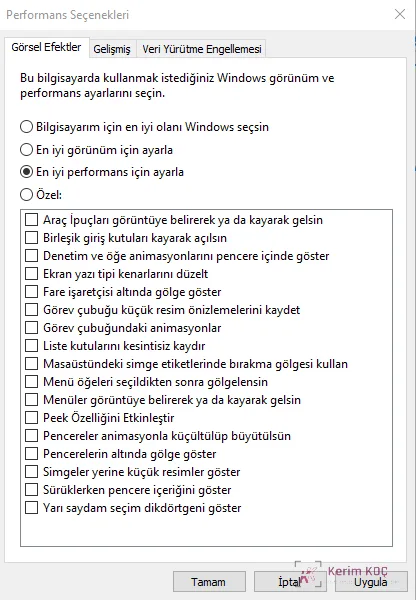
- In the search box on the taskbar, type performance , then select Adjust the appearance and performance of Windows in the list of results .
- On the Visual Effects tab, select Adjust for best performance > Apply .
- Restart your computer and see whether this speeds it up.
Run a Virus Scan
Your computer's slow performance may be virus-related. Windows 10 has built-in virus protection that can help remove viruses and unwanted software.
Follow these steps to run a virus scan:
- Select Start > Settings > Update & Security > Windows Security and then Open Windows Security .
- Select Virus & threat protection , then under Virus & threat protection updates select Check for updates .
- On the Protection updates screen, select Check for updates to make sure you have the latest updates.
- After selecting Virus & threat protection , select Quick scan .
Wait for Windows Security to finish scanning for viruses and malware.
These steps can help improve your computer's performance.