Kerim Koç
Did you know you can use your Windows 10 laptop as a wireless access point to share an Internet connection with others? Some laptops come with a built-in mobile network adapter as well as a Wi-Fi interface…
If you are in a remote location where only a mobile network is available, you can connect to the mobile network through your built-in mobile interface and share it through your Wi-Fi adapter with others.
This setup allows other devices to connect to your laptop's Internet without a separate network, and lets you share an Internet connection made through another interface, such as a wired network or a cellular network…
It also works if you are on a wired network and want to share a hotspot with others… With this setup, you need to connect your Windows 10 laptop to the wired network (Ethernet), then enable the hotspot on your Wi-Fi adapter to share it with others…
This short tutorial will show students and new users how to enable the Windows 10 hotspot to share an Internet connection with others.
To get started, follow the steps below:
While your laptop is connected to a mobile network or a wired connection (Ethernet):
- Select Start and then select Settings > Network & Internet > Mobile hotspot .
- For Share my Internet connection from , choose the Internet connection you want to share.
- Select Edit > enter a new network name and password > select Save .
- Turn on Share my Internet connection with other devices .
- To connect on the other device, go to the Wi-Fi settings on that device, find and select your network name, enter the password, and then connect.
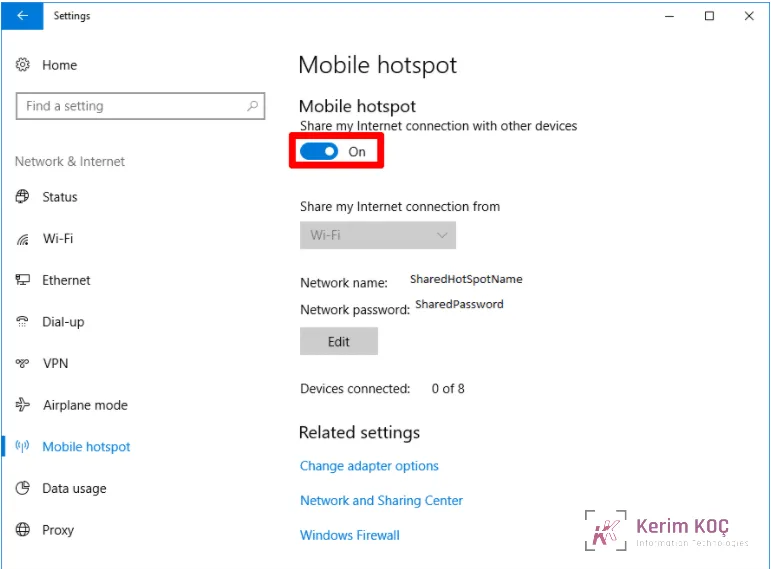
Your Wi-Fi adapter, which is not connected to any network, should now be ready to enable the hotspot… Remember that another network device must already be connected to a network with Internet access… this other device can be a built-in mobile network adapter or a wired connection adapter…
After that, others can now connect to your laptop's hotspot …
A network name (SSID) and security key are generated automatically…. The network name will be the name you created when setting up the hotspot. Other devices will need this information to connect to the hotspot you just created.
Congratulations! You have successfully created a Windows 10 hotspot to share with other systems.