Kerim Koç
Contents
- Install Windows Server 2022 – Step by Step with Screenshots
- Step 1. Download the Windows Server 2022 ISO
- Step 2. Create a Bootable ISO Image for Windows Server 2022
- Step 3. Install Windows Server 2022 – PowerShell & Desktop Edition
- (Bonus Section) – Configure Networking in Windows Server 2022
- Configuring Networking for the Windows Server 2022 Minimal Edition
- Configuring Networking for the Windows Server 2022 Datacenter Edition
Windows Server 2022 is built on a Windows 2019 foundation in terms of features. Windows 2022 was first announced in 2021 and will receive long-term support for 10 years.
Some of the great features that come with Windows Server 2022 include:
- Nested virtualization for AMD processors
- The Microsoft Edge browser is included as the default web browser
- Advanced security features
- UDP/TCP performance improvements
- Azure hybrid capabilities
You can find more details and features on the Release Notes page.
Let's jump right into the steps required to install Windows Server 2022 on your physical hardware or in a virtualized environment.
Install Windows Server 2022 – Step by Step with Screenshots
Follow the steps below to install Windows Server 2022
Step 1. Download the Windows Server 2022 ISO
To get the Windows Server 2022 ISO, you will need to register on Microsoft's official Windows Insider page .
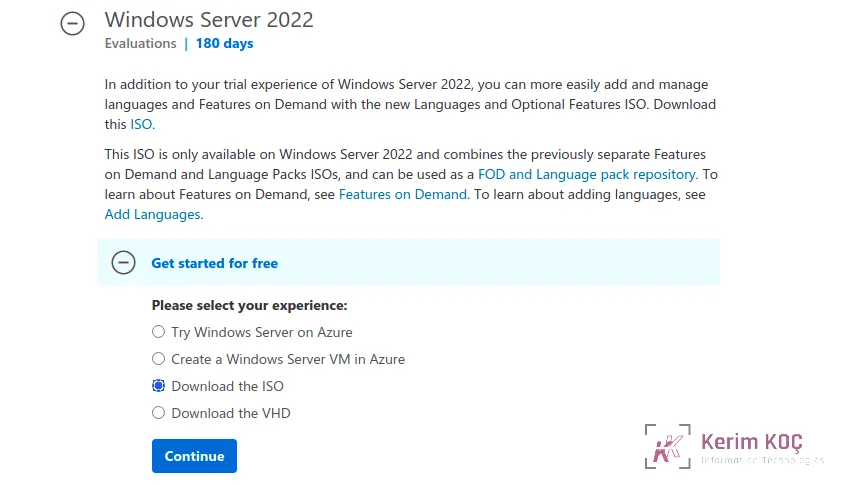
Select the “ Download the ISO ” option and continue.
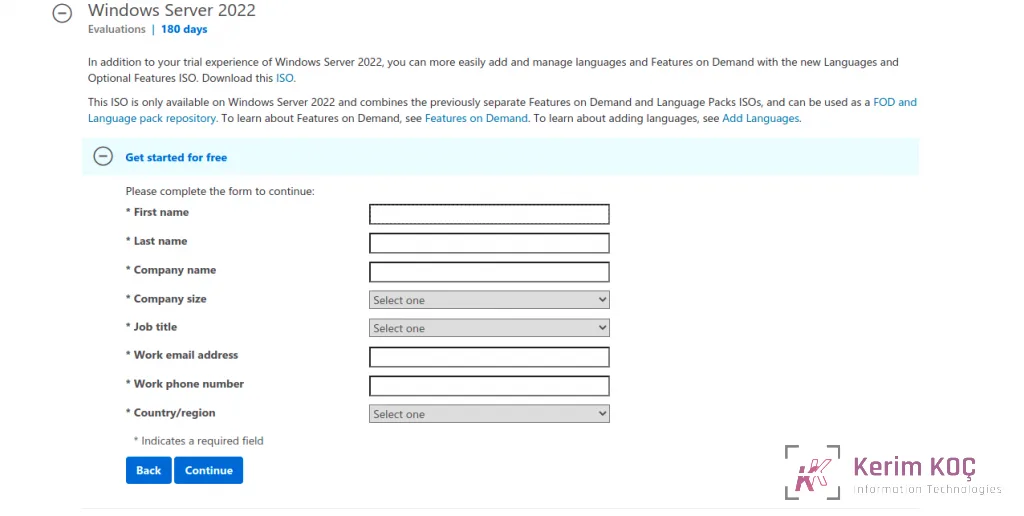
Before starting the ISO download, you will be asked to fill in your details.
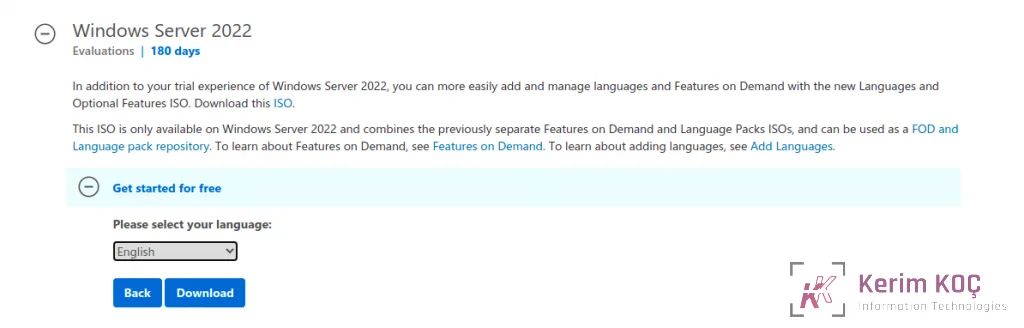
Finally, before the download starts, you will be asked to choose your preferred language.
Step 2. Create a Bootable ISO Image for Windows Server 2022
After a successful download, the next step is to prepare your environment. You can install Windows Server 2022 on a physical host or in a virtual environment. For a physical host, you may need to create a bootable ISO image.
Step 3. Install Windows Server 2022 – PowerShell & Desktop Edition
Once the boot media is ready, we can move on to the installation steps. Windows Server 2022 allows you to install the following editions:
- Windows Server 2022 Standard
- Windows Server 2022 Standard (Desktop Experience)
- Windows Server 2022 Datacenter
- Windows Server 2022 Datacenter (Desktop Experience)
In this guide, we will cover how to install the following editions:
- Windows Server 2022 Standard – A minimal command-line edition that lets you manage Windows Server using PowerShell.
- Windows Server 2022 Datacenter (Desktop Experience) – A complete edition with all features and a GUI for server management.
Install Windows Server 2022 Standard – PowerShell Minimal Edition
To install the minimal edition, power on your physical/virtual server.
You will be prompted to press any key on the keyboard to start the Windows setup script:

In the window that opens, select your preferred language and then click “Next”.
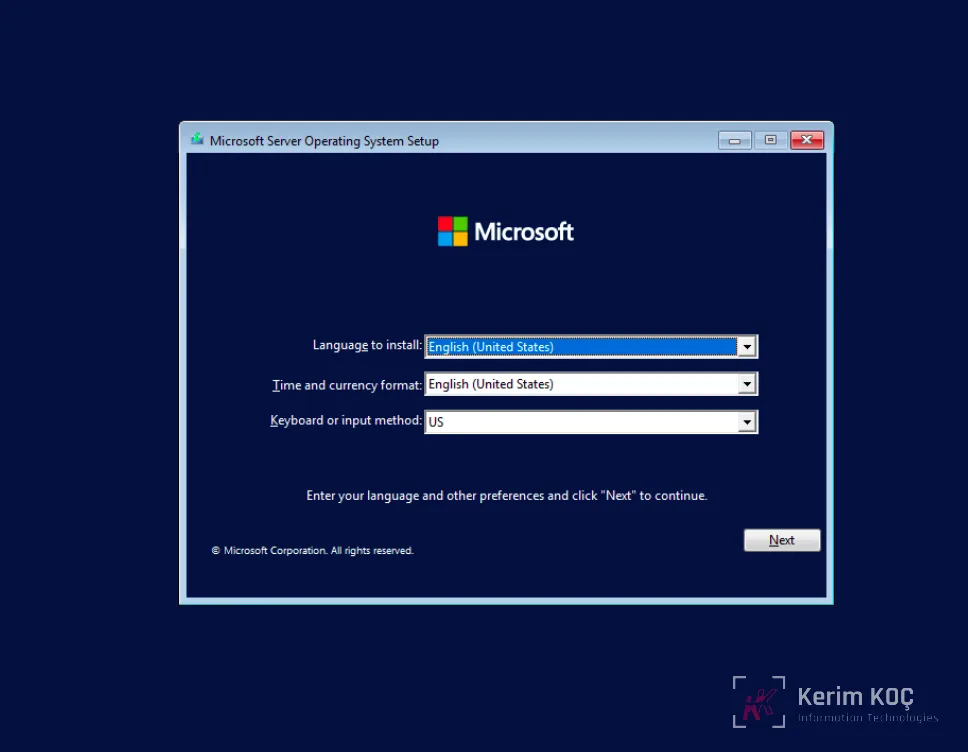
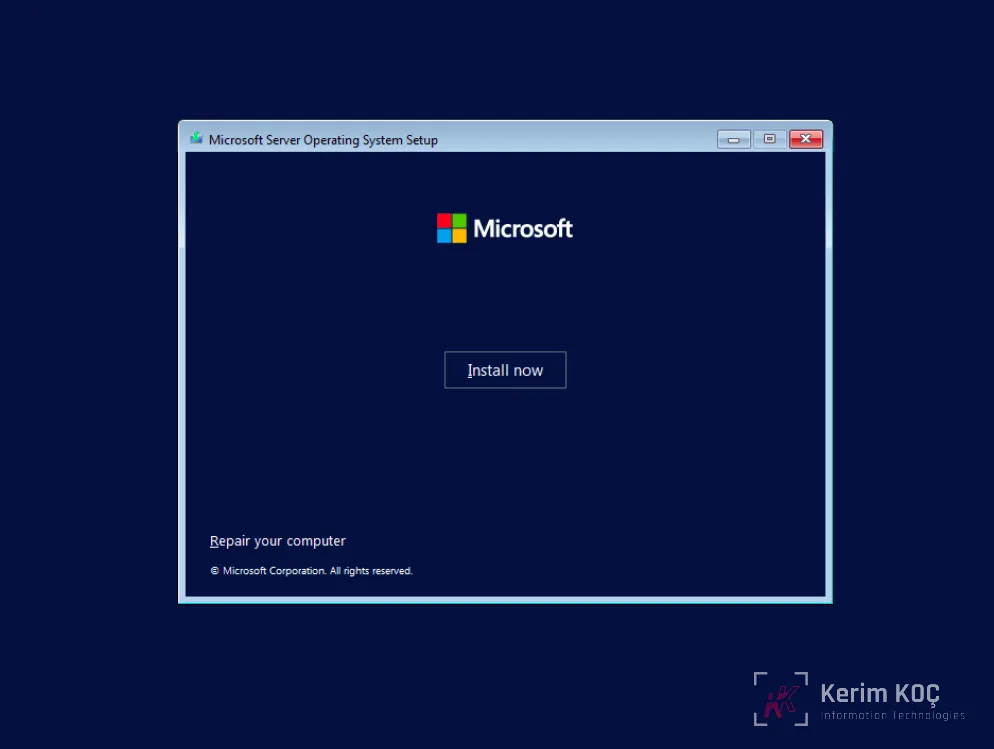
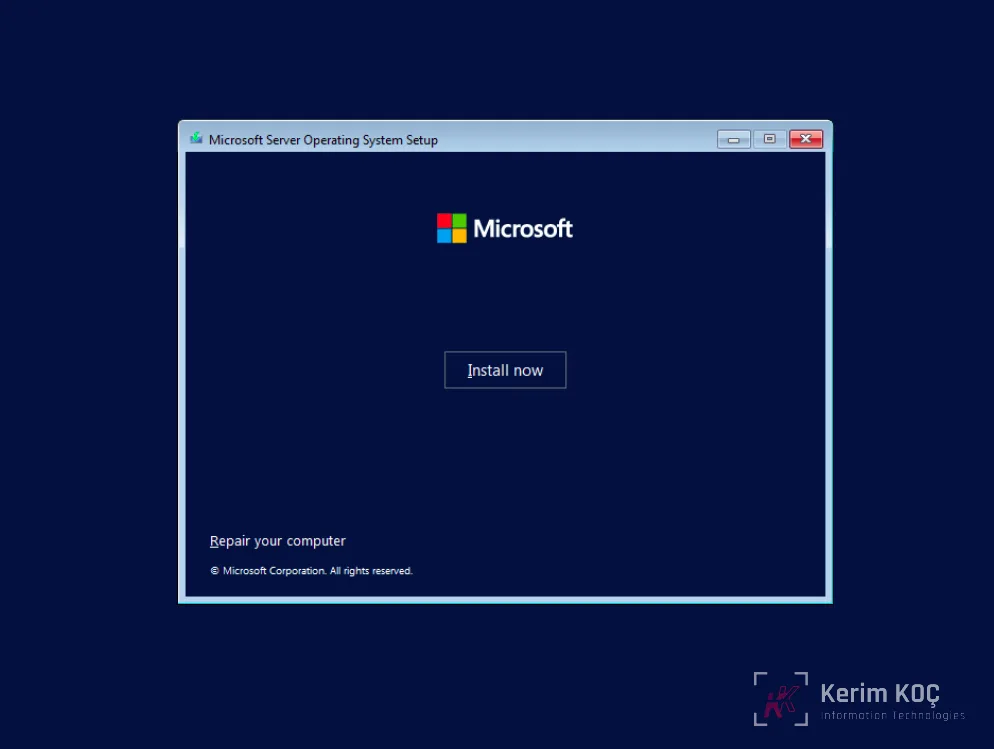
Click the “Install now” button to start the installation process for the Windows Server 2022 minimal edition:
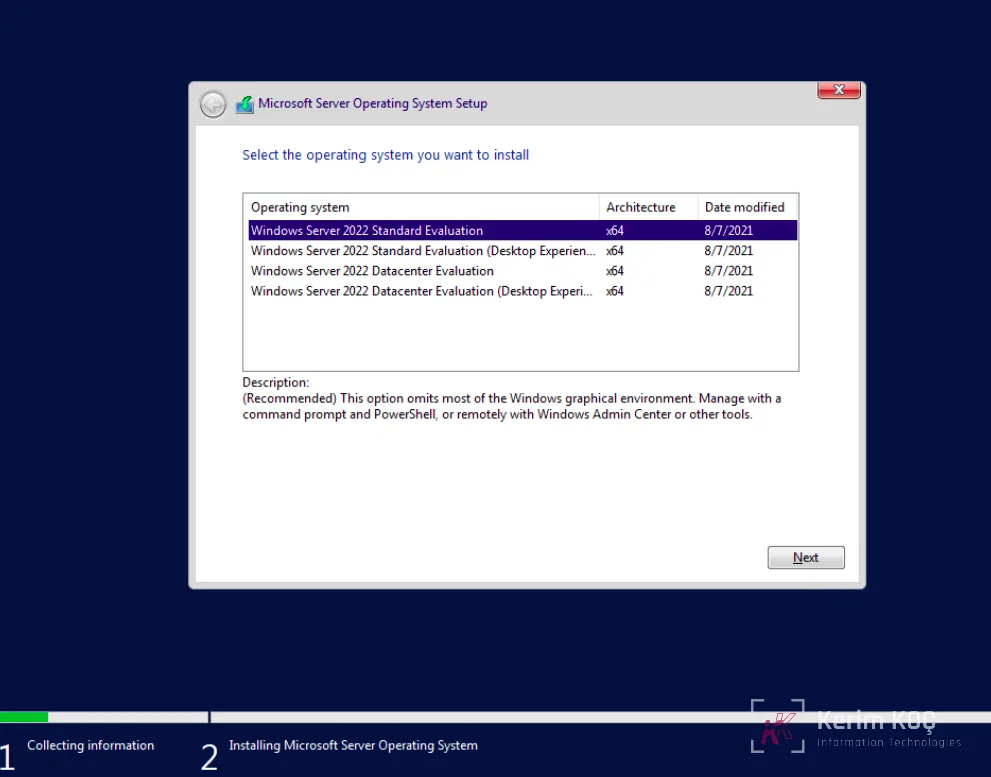
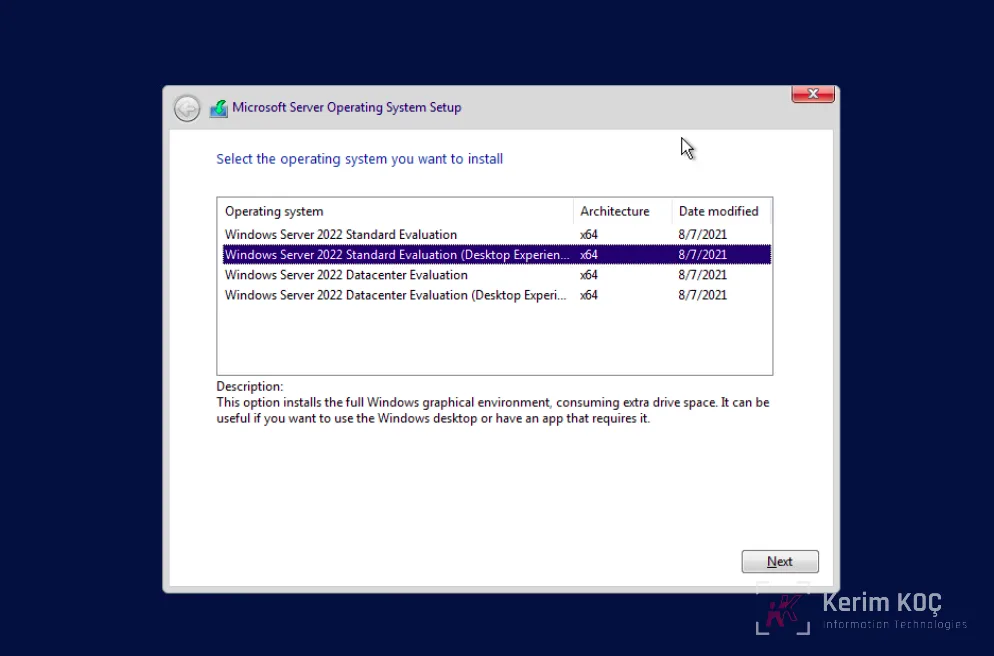
In the next window, select the Windows Server 2022 Standard option to install the minimal edition, which gives you the advantage of using the command line and PowerShell tools to manage your Windows 2022 server.
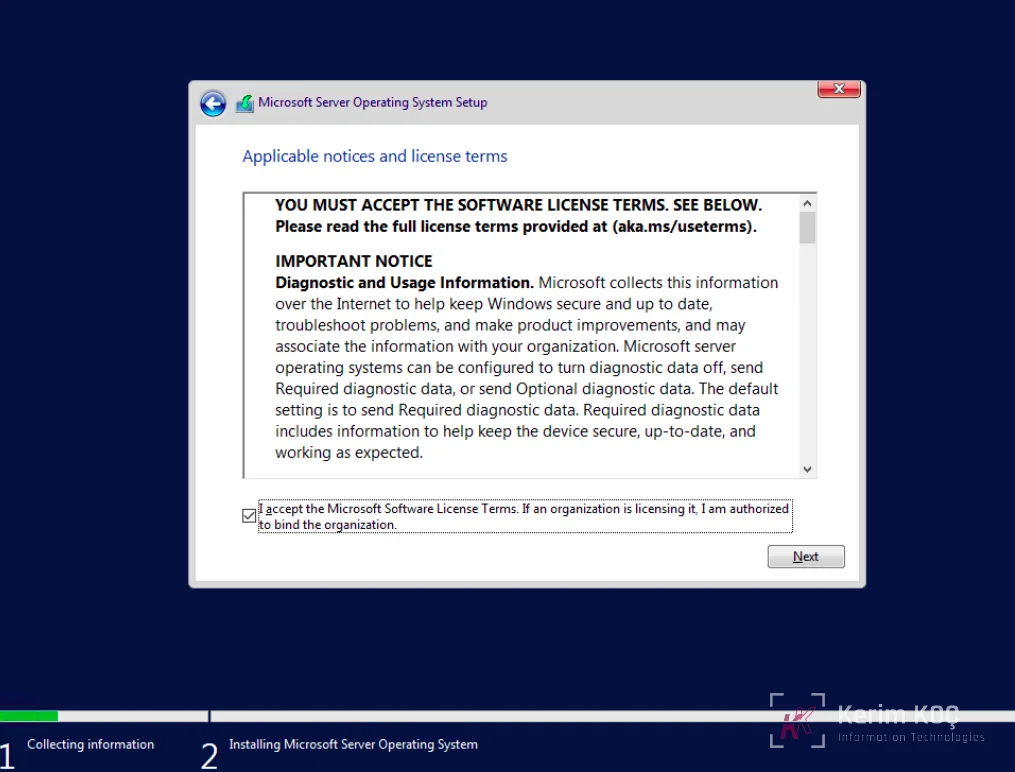
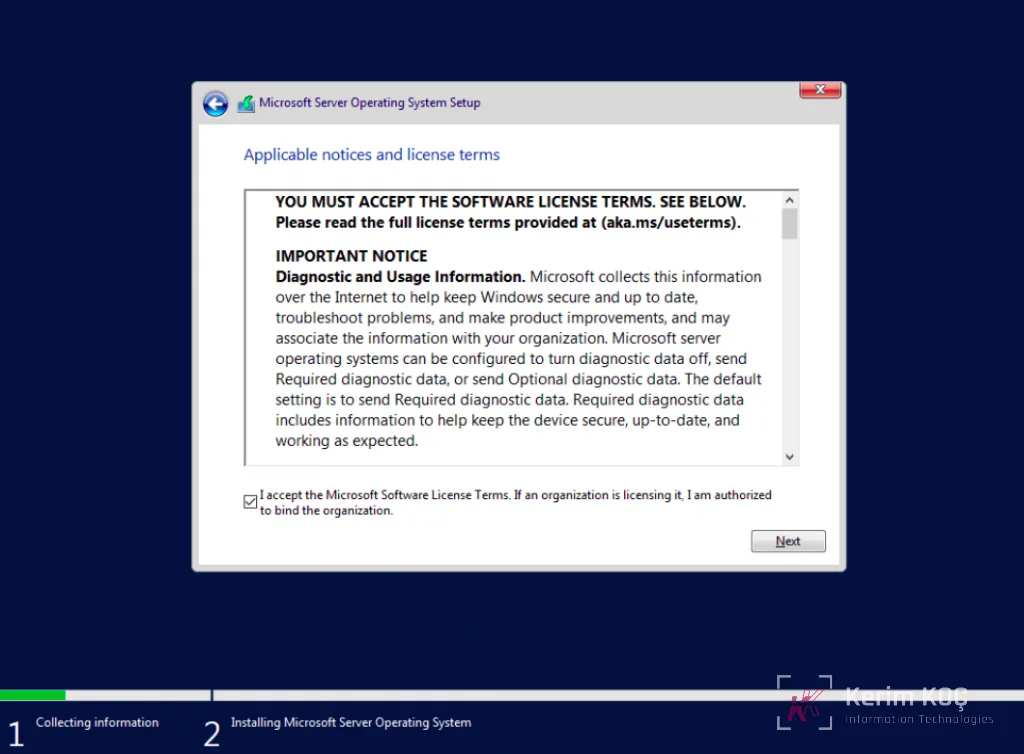
Next, read the license terms and agree to start the installation by checking the “I accept the license terms” box.
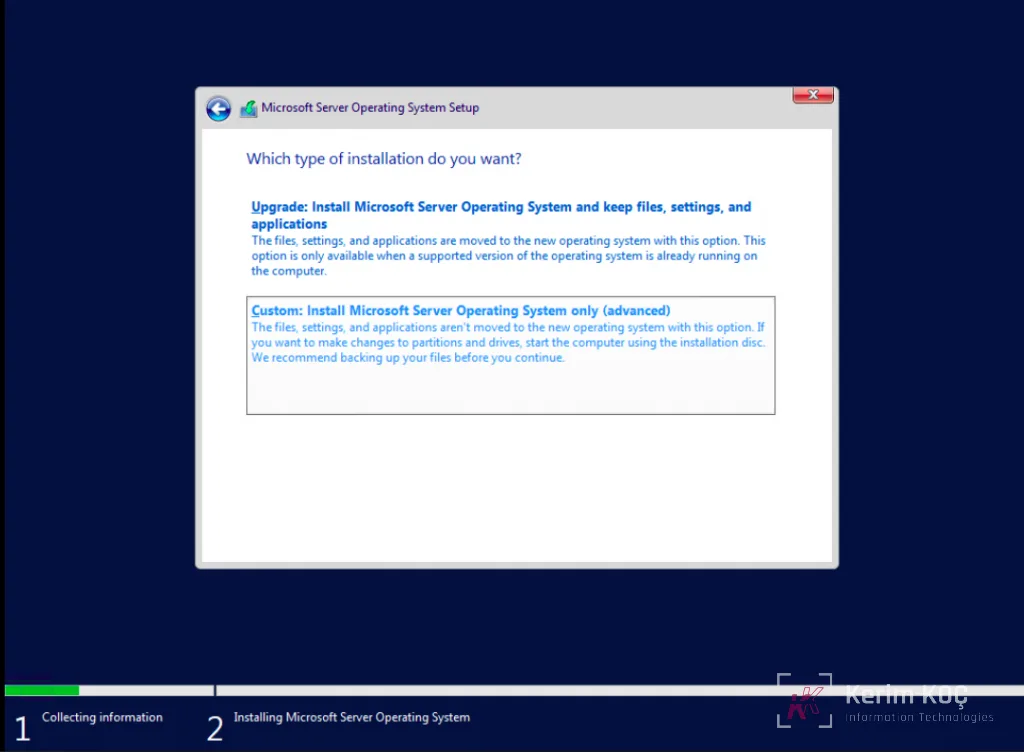
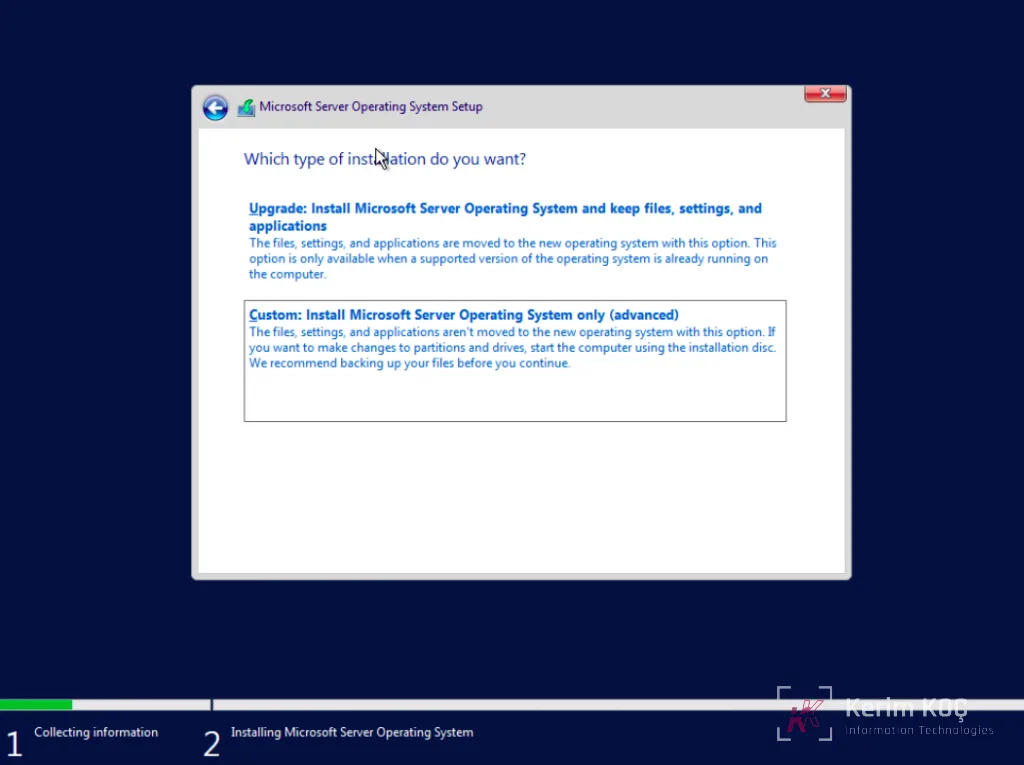
If you are installing Windows Server 2022 on a new server, select (Custom: Install Windows only).
Select a partition to install Windows Server on. Optionally, you can create a new one from the existing space, or use the total available size by clicking “Next ”.
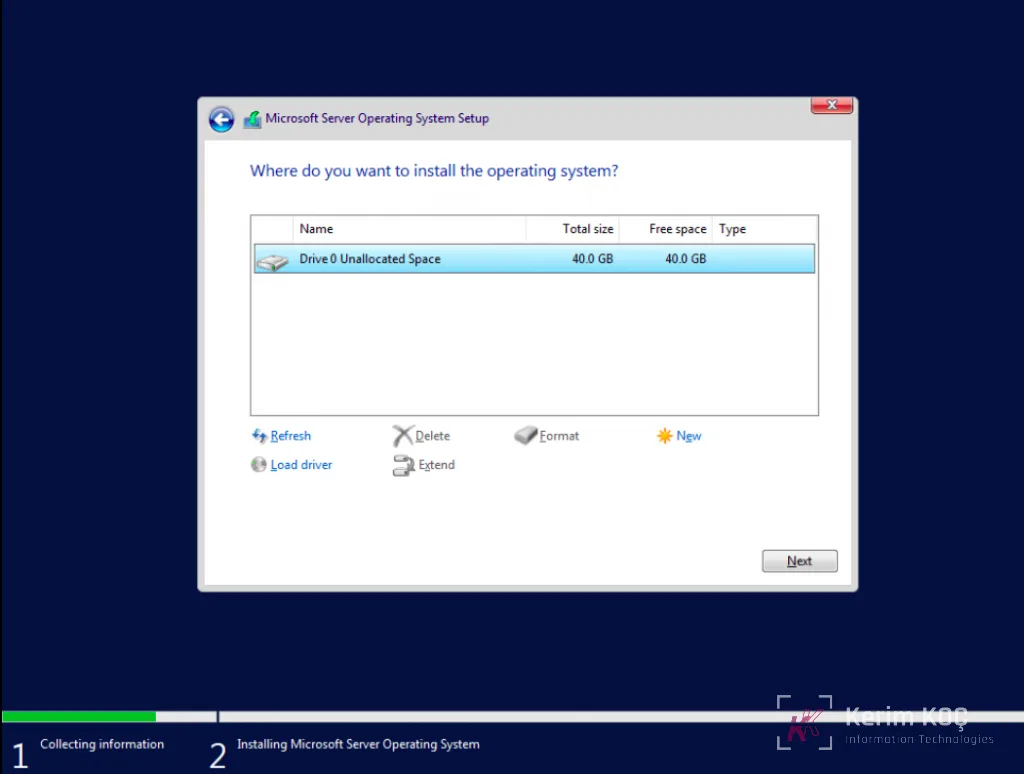
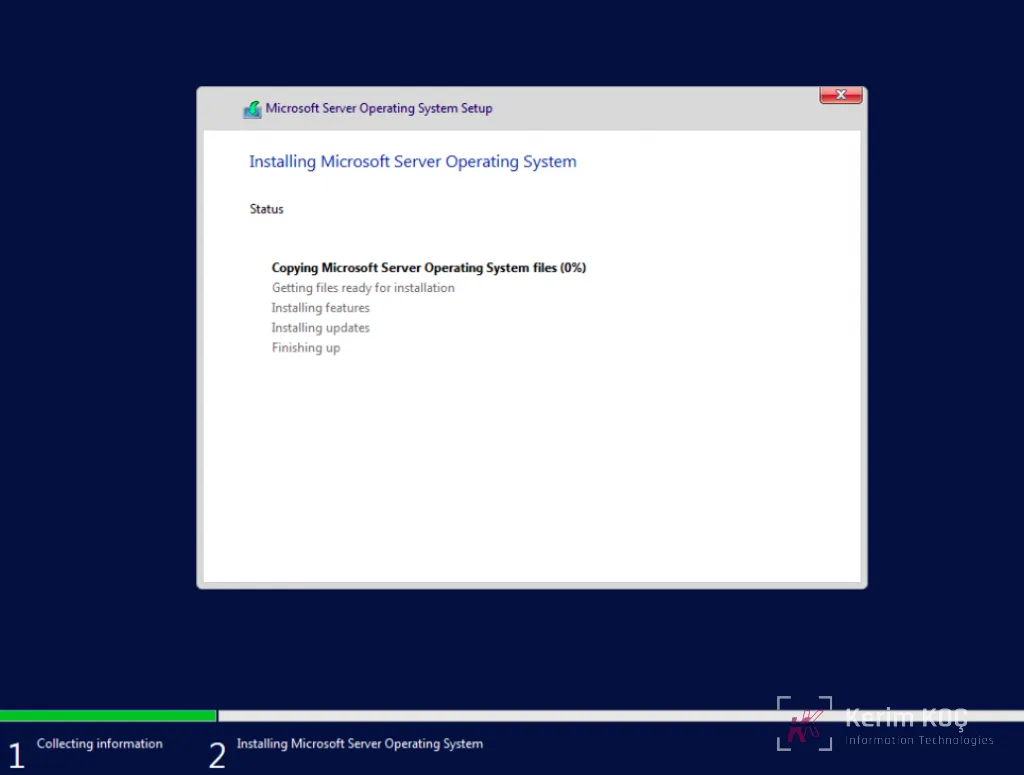
When you click “Next”, the installation process will begin.
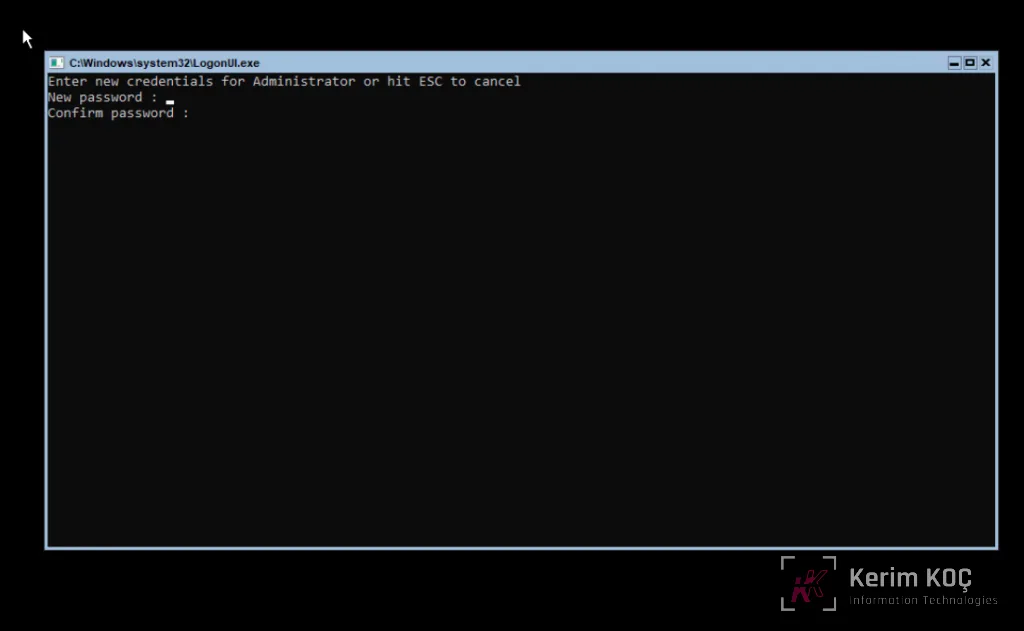
After a successful installation, the system should restart and ask you to configure the Administrator password. Enter the password and enter it again for confirmation:
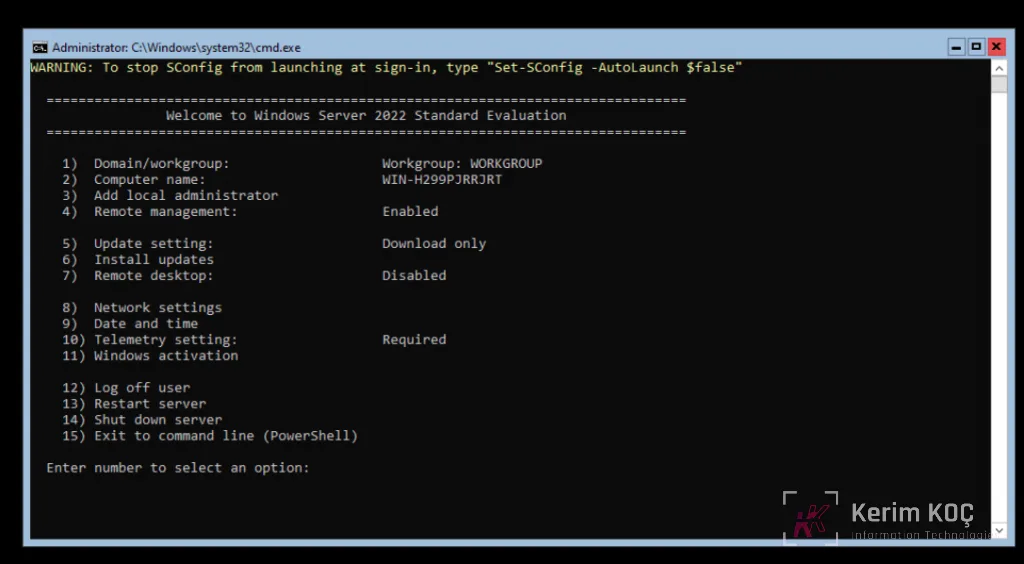
You will then be taken to the PowerShell interface, where you can start managing your Windows Server 2022 minimal edition:
Install Windows Server 2022 Datacenter (Desktop Experience)
This is the most common edition, and it is the one many people like to use because of its rich features and Graphical User Interface. However, you should know that this edition needs more resources than the minimal option. You need more disk space, more memory and sometimes more CPU capacity.
To install this edition, start your Setup by pressing a key on your keyboard when prompted.

After selecting your preferred language, proceed to the installation:
Select the Windows Server 2022 Datacenter (Desktop Experience) option to continue the installation:
Accept the terms and continue:
If you are installing Windows Server 2022 on a new server, select (Custom: Install Windows only).
Select a suitable partition for the Windows Server 2022 installation; you can also use the entire disk.
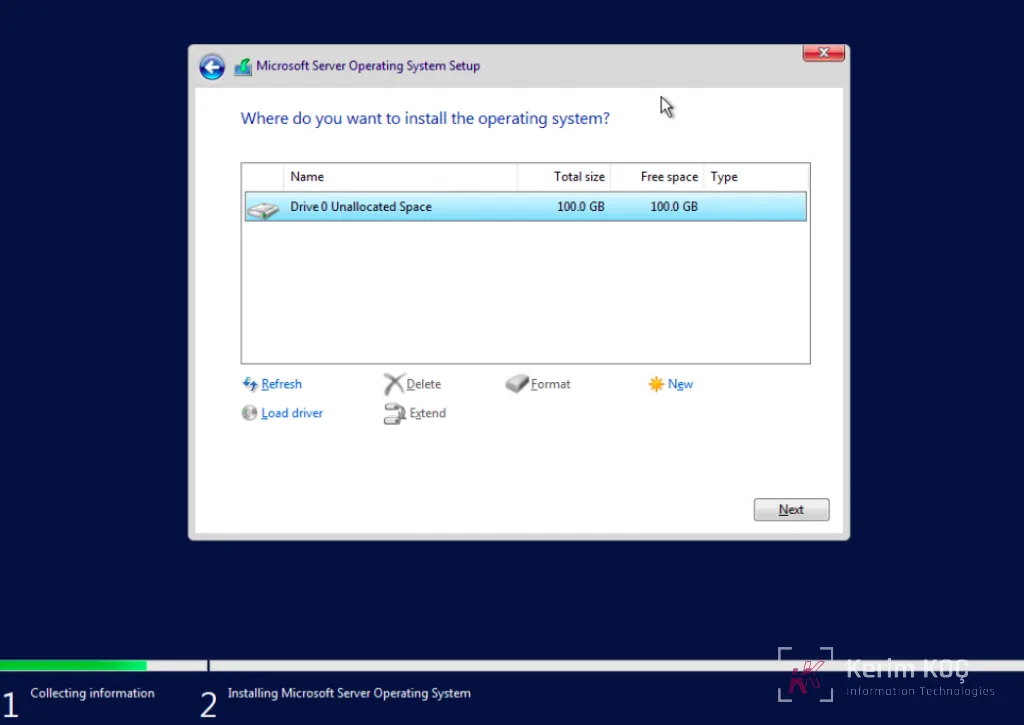
Right after you click “Next”, the installation process should begin.
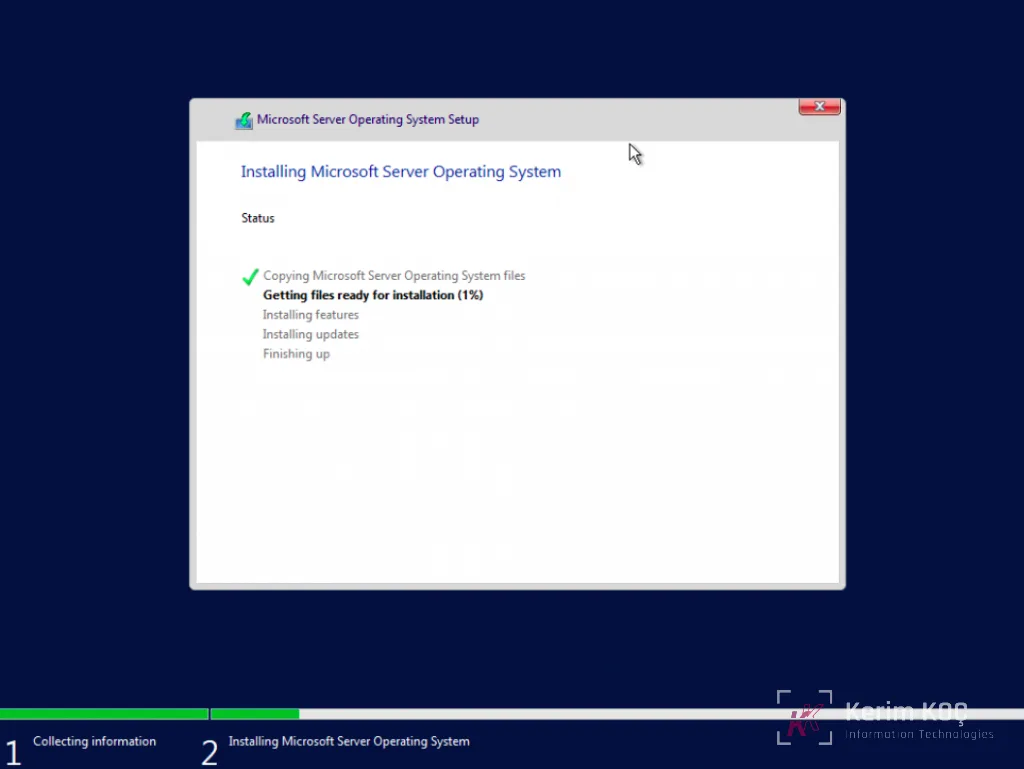
This process takes some time, but a successful installation will prompt the system to restart. After the restart, you will be asked to set a password for the Administrator user:
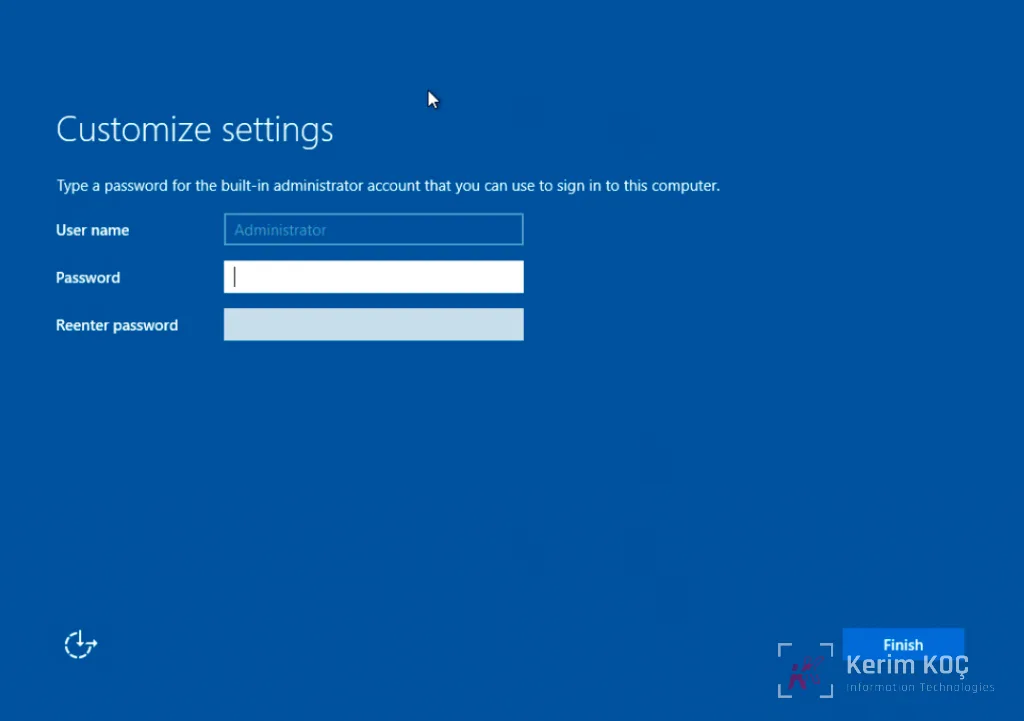
Click Finish to complete your installation and access your server's GUI.
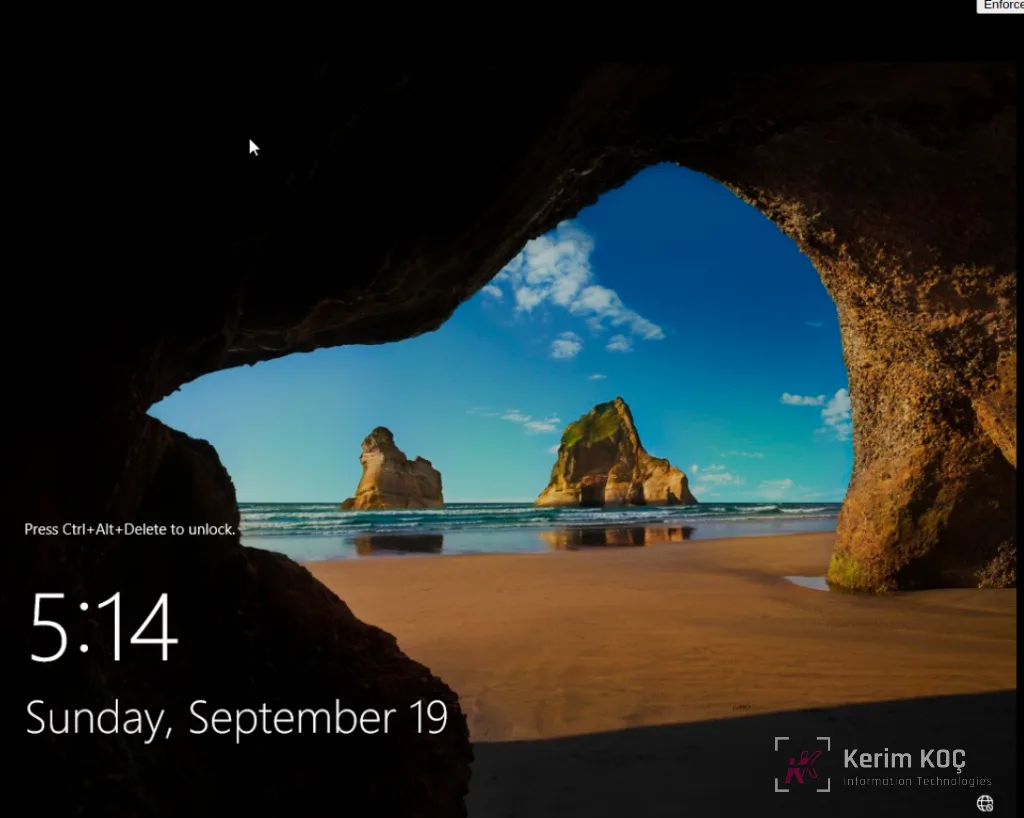
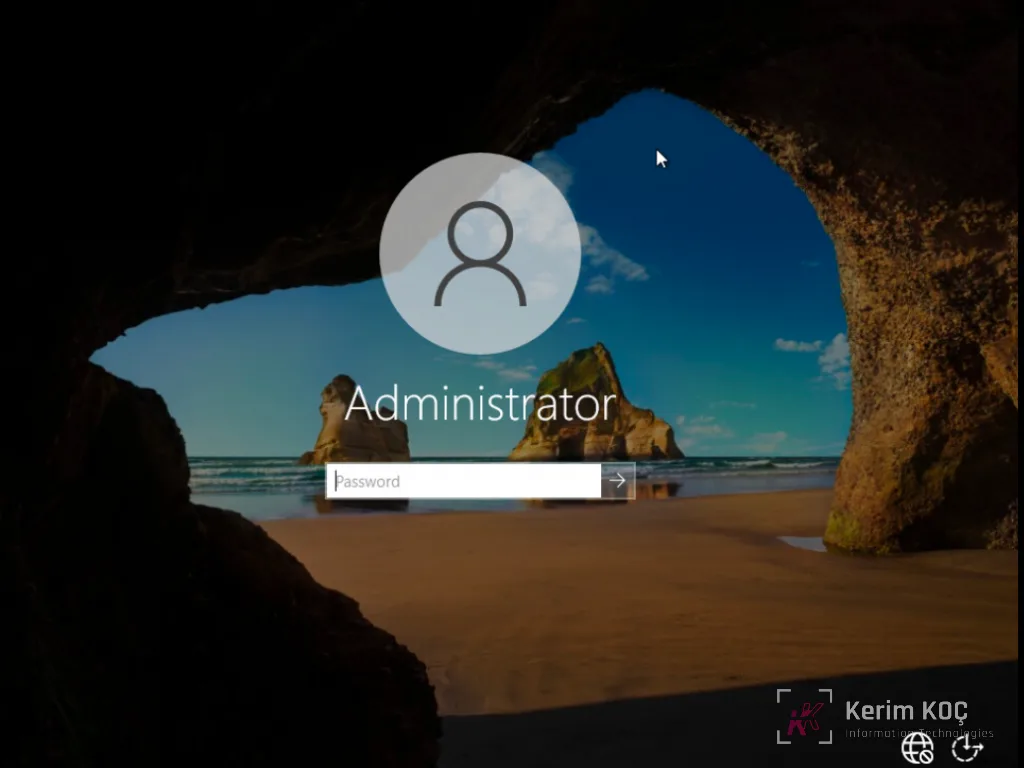
Press CTRL+ALT+DEL to open the sign-in screen . You will be asked to enter the password you configured in the previous step to access the server.
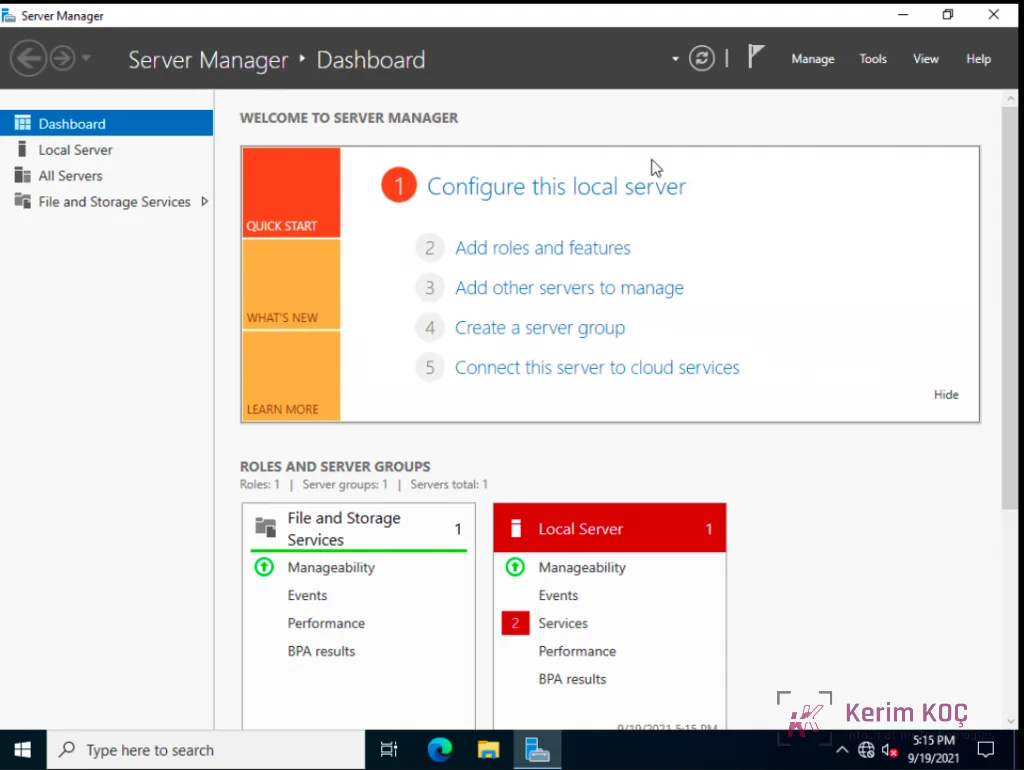
As you can see, Windows Server 2022 launches Server Manager by default:
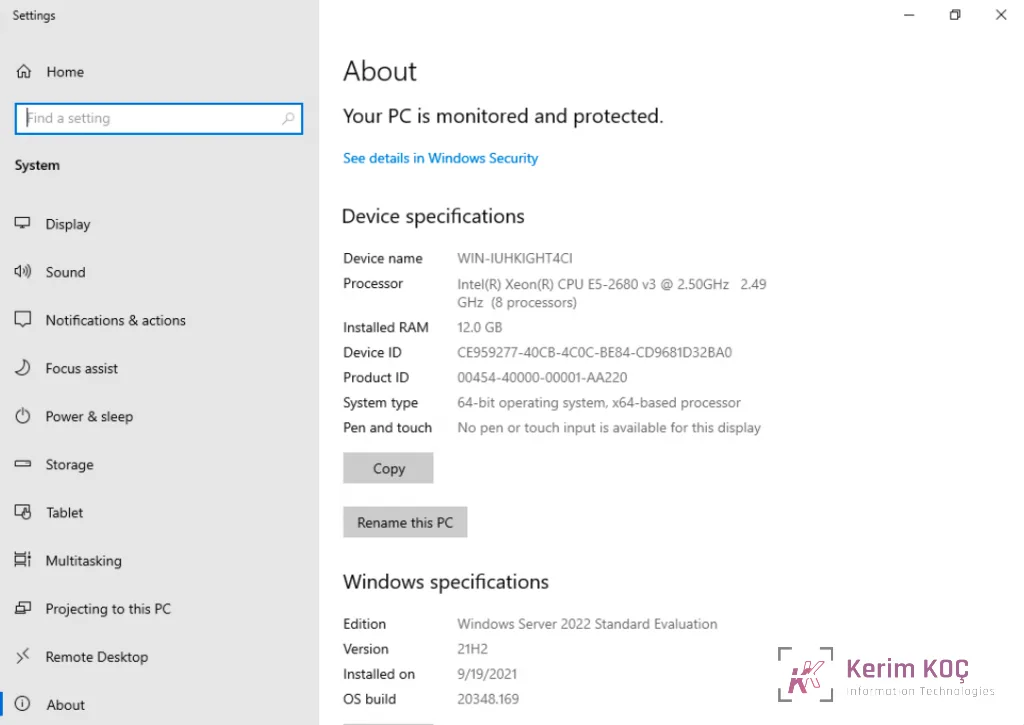
You can check the server details from the Server Manager dashboard or from the server's Control Panel.
(Bonus Section) – Configure Networking in Windows Server 2022
Now that we have covered how to install the Windows Server 2022 minimal and Datacenter editions, we can go a step further and configure networking in the same way.
Configuring networking for the server is important for accessibility. It helps system administrators manage the server remotely and also lets the server communicate with other systems in the environment and on the internet.
Configuring Networking for the Windows Server 2022 Minimal Edition
To configure networking for the Windows Server 2022 minimal edition, run the following command to bring up the menu options:
SConfigThis opens a menu like the following:
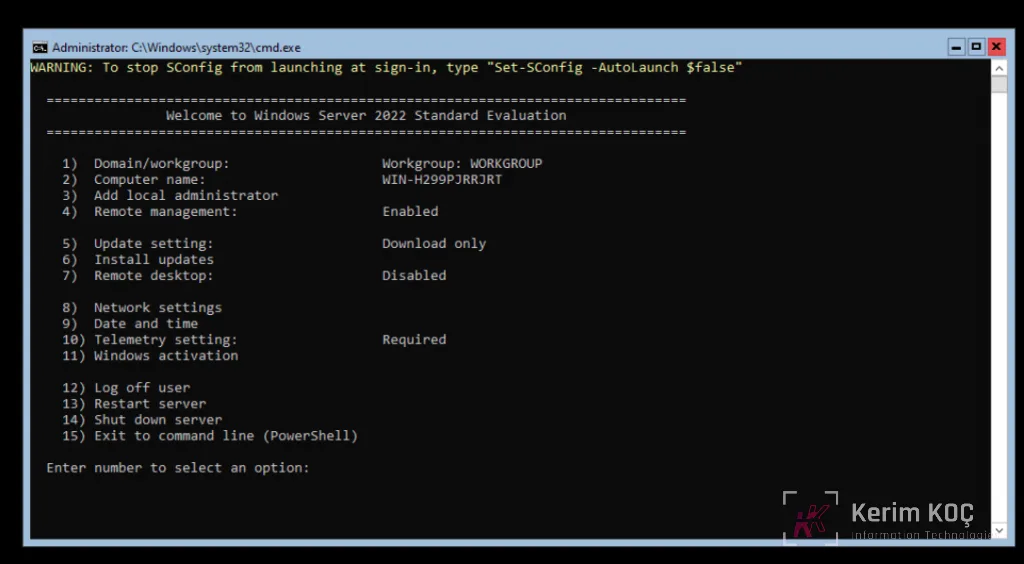
Select option 8 for network settings.
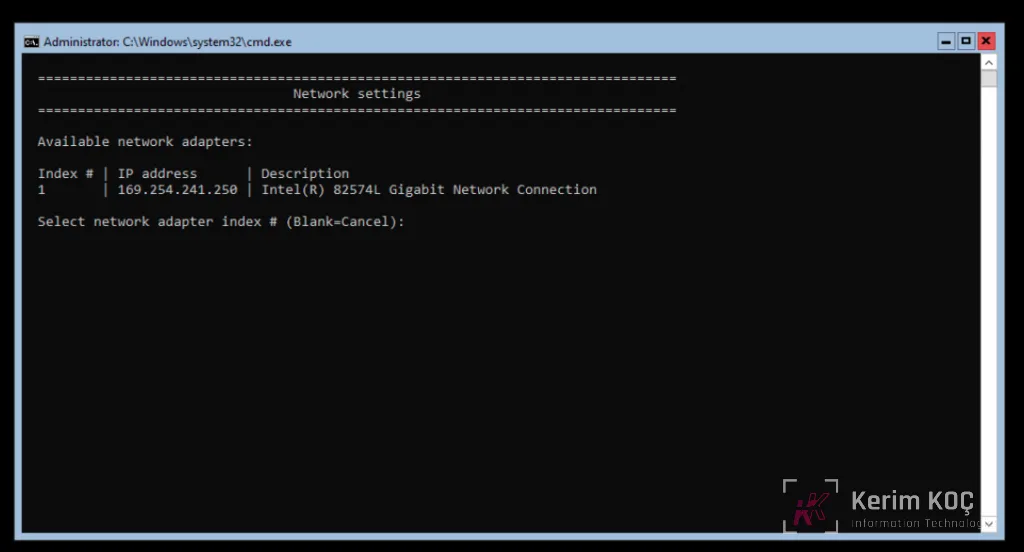
Select the adapter index of the interface for which you want to configure the IP. In my case, I will select 1, since that is the network interface attached to the server.
From the menu that is displayed, select the option you want to configure:
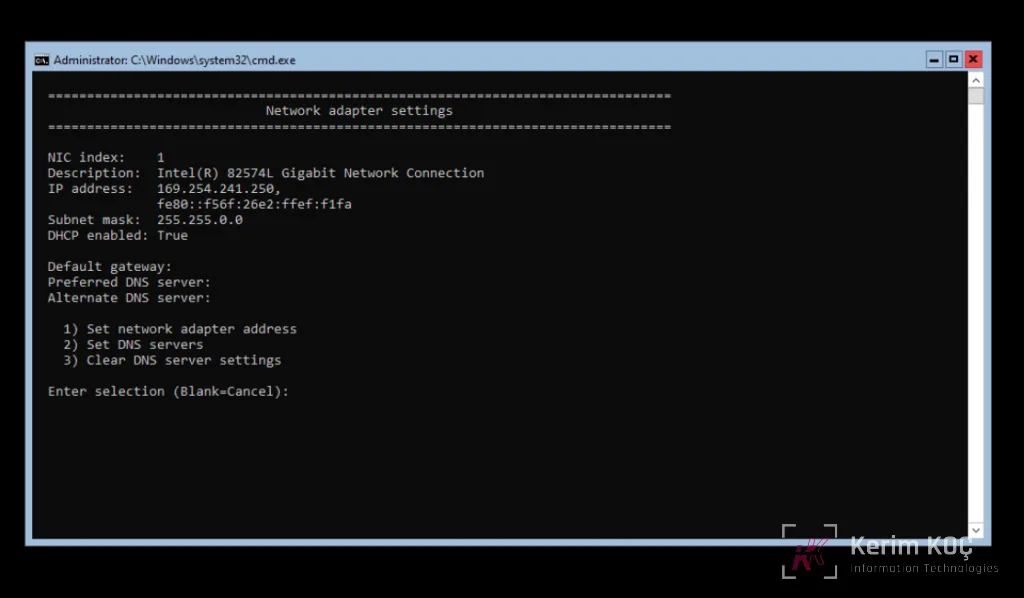
Continue with the prompts to configure the IP as static or dynamic.
This should get you up and running with the IP configuration.
Configuring Networking for the Windows Server 2022 Datacenter Edition
This is the GUI edition of Windows Server 2022, and the network configuration method is similar to that of other older versions of Windows Server, such as Windows Server 2016 and 2019.
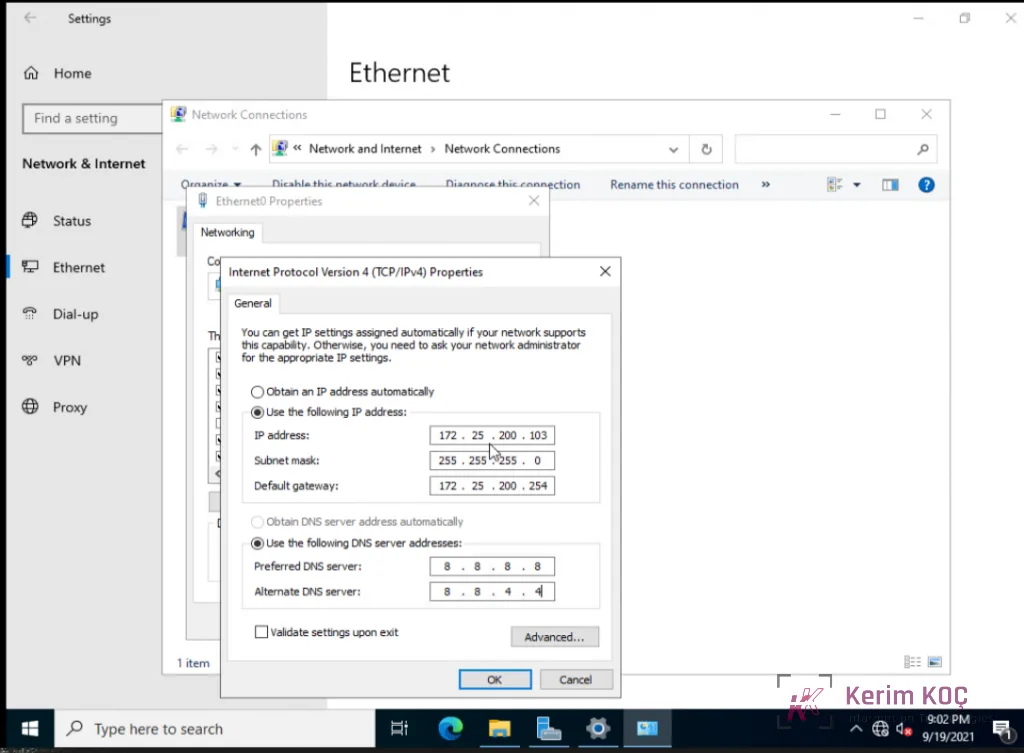
Network Settings for Windows Server 2022 can be found in the Control Panel under the “Network Connections” option.
You can assign a static IP to a Windows Server 2022 instance by editing the interface options and adding values like the following for a static IP: